
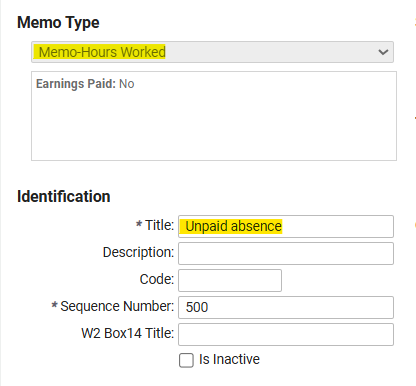
- Navigate to Client Management -> Payroll -> Memo Calculations
- Click Add New and select Memo-Hours Worked as the Memo Type and title it appropriately then click Save.
- Navigate to Client Management -> Benefits -> Absence Policies.
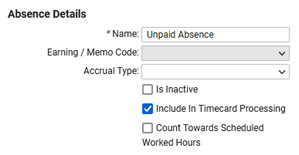
- Click Add New and title the Absence Policy appropriately.
- Do not select an Earning or Accrual Type.
- Check the box for Include in Timecard Processing.
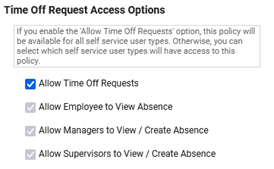
- If employees should be able to request the time off, check the box to Allow Time Off Requests.
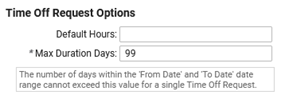
- Enter 99 as the Max Duration Days and then click Save.
- Navigate to Client Management -> Time Management -> Hours Allocation Rules.
- Select the appropriate Hours Allocation Rule Set
- Add New Rule. Title the rule appropriately
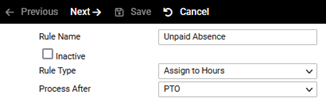
- Select Assign to Hours as the Rule Type then click Next.
- Select your Memo Calculation as the Earning Applied then click Next.

- Choose Per Occurrence as the Group Period then click Next.

- Target (No Earning) and then click Next.
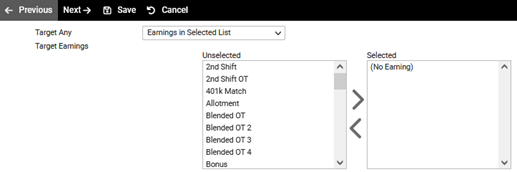
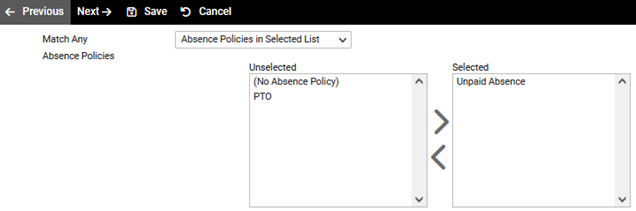
- Apply the Condition Type “Hour Matches Absence Policies” and then click Next.

- Select the Absence Policy you previously set up and then click Save.
- Select Assign to Hours as the Rule Type then click Next.
- Add New Rule. Title the rule appropriately
- Select the appropriate Hours Allocation Rule Set
- Test your rules by creating an unpaid absence under Employee Self-Service -> Time -> Employee Absences and check their timecard to ensure the memo calculation is being applied. Be sure to delete the absence when finished confirming it is functioning.