
Each year, state agencies assign employers a new Unemployment Insurance (UI) tax rate. This notice is mailed directly to your client by the state — it is part of the employer's relationship with the agency and is not routed through Payroll Vault. The Tax Department does not update unemployment rates any given year.
The Tax Department files and pays UI taxes based on the rate configured in iSolved. Keeping that rate accurate and up to date is an important part of ensuring your clients' accounts are handled correctly throughout the year.
Who Is Responsible for What
The client receives the UI rate notice from the state and is responsible for forwarding it to their Payroll Vault franchise. The franchise is then responsible for receiving that notice and entering the new rate in iSolved before the client's first payroll of the new year. The Tax Department's role is to file and pay UI taxes based on whatever rate is configured in iSolved — we do not receive rate notices, maintain rates, or communicate with clients directly.
Step 1 — Client Receives the Rate Notice
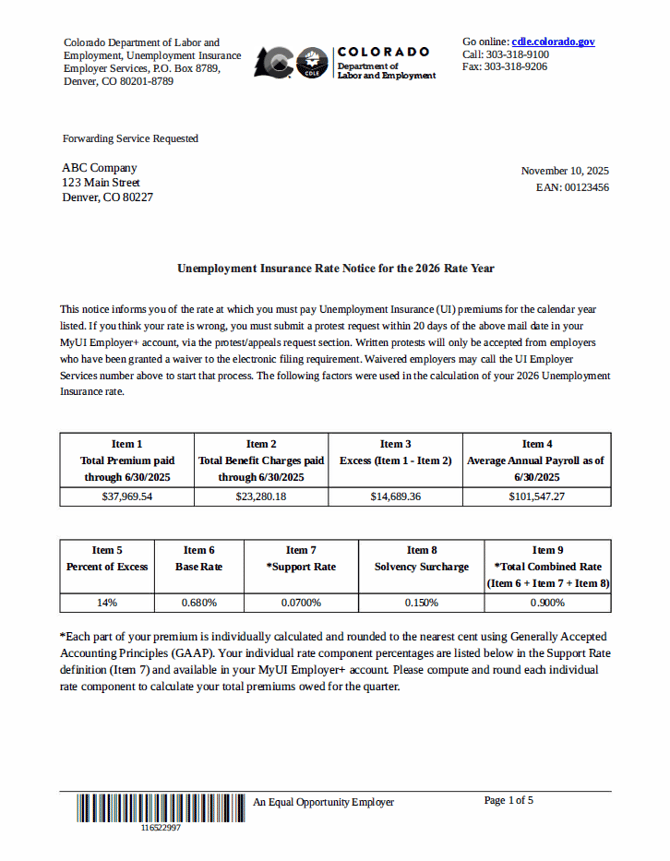
The state mails the UI rate notice directly to the employer (your client), typically between October and December for the upcoming calendar year. Some states send notices as late as March.
The key number to locate on the notice is the Total Combined Rate. On a Colorado rate notice, for example, this appears as Item 9 and is the sum of the Base Rate, Support Rate, and Solvency Surcharge.
If a client did not receive a notice, advise them to log in to their online account with the state agency to retrieve their current rate. Most states make the rate notice available online.
Step 2 — Franchise Owner Enters the Rate in iSolved
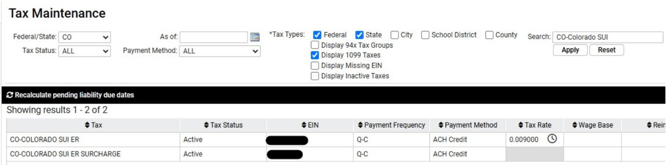
Once you have the rate from your client, navigate to Client Management > Taxes > Tax Maintenance in iSolved.
Search for the applicable state SUI tax line, click into the rate field, and enter the new rate. Using the Colorado example above, the Total Combined Rate of 0.900% is entered. Once saved, you will see it as a decimal format, example 0.900% shown in iSolved as 0.009000.
Step 3 - Enter the Correct Effective Date
When entering the rate, you will be prompted for an effective date. This is critical. Most states have a rate effective January 1 of the new year. However, some state may use a different effective date. Always reference the rate notice itself to confirm the effective date before entering it in iSolved.
Entering the wrong effective date will cause iSolved to apply the incorrect rate to payrolls processed before or after that date, resulting in over- or underpayment of UI taxes.
What Happens If the Rate Is Not Updated
If the rate is not updated in iSolved before payrolls are processed, the Tax Department will remit the wrong amount to the state. Rate corrections cannot be made until after our blackout period has passed. In the meantime:
- Overpayment: The incorrect amount will have already been remitted to the state. Once the blackout period has passed, but the client will need to contact the state agency to request a refund.
- Underpayment: A balance will be owed to the state once the correct rate is applied. The state may also assess penalty or interest on the shortfall.