Tracking a Salaried Employee’s Hours using Time and Attendance
Add a Memo Calculation for Hours
- Navigate to Client Management > Payroll > Memo Calculations.
- Click Add New.
- Select Memo Hours from the Memo Type dropdown menu.
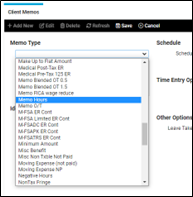
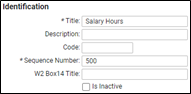
- Change the Title to Salary Hours and Save.
Create a Time Card Permission Rule
- Navigate to Client Management > Time Management > Time Card Permission Rules.
- Add New.
- Security Rule Name: Salary
- Select the configuration based on the client’s specifications and Save.
*Be sure to select Allow Self Service Punch to allow salary employees to clock in and out.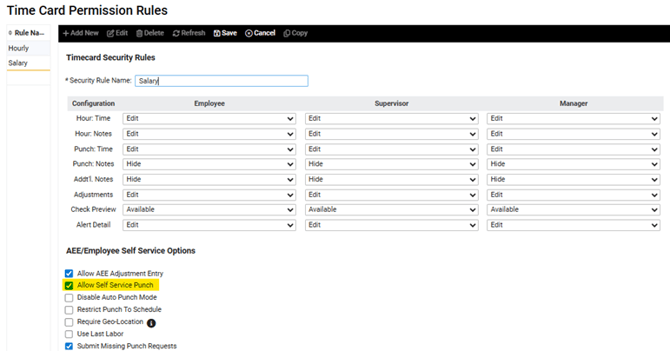
Create an Hours Allocation Rule
- Navigate to Client Management > Time Management > Hours Allocation Rules.
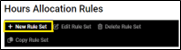
- Create a New Rule Set.
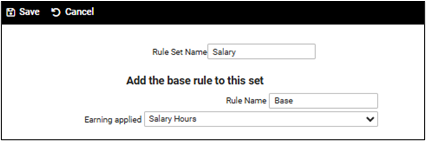
- Name the Rule Set Salary, select the Salary Hours Memo Calculation as the Base Earning, and Save.
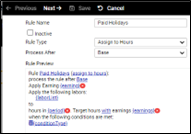
- If there are absences (Holidays, PTO, Unpaid Time Off, etc.), you can add the appropriate absences to the Rule Set. The example below is for a paid Holiday. Repeat as needed for additional absences.

- Create a Rule for Paid Holidays to Process After the Base rule. The Rule Type will be Assign to Hours. (This replaces the base earning/memo calculation with a new earning code.) Click Next.
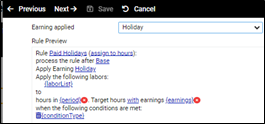
- Select the Earning to be applied. (In this case: Holiday.) Click Next.
- Create a Rule for Paid Holidays to Process After the Base rule. The Rule Type will be Assign to Hours. (This replaces the base earning/memo calculation with a new earning code.) Click Next.
-
- Choose All from the Group Period dropdown menu. Click Next.
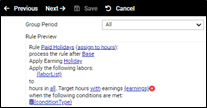
- Choose All from the Group Period dropdown menu. Click Next.
- In the Target Earnings section, select (No Earning). Click Next.
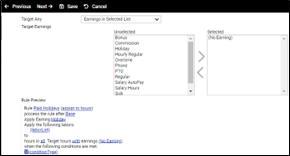
- Apply the Condition Type, Hour is a Holidays. Click Save.
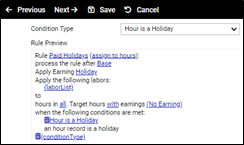
Create an Eligibility Rule
- Navigate to Client Management > Time Management > Eligibility Rules.
- Add New.
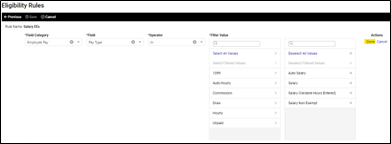
- Name the Rule Salary EEs and Select Timecard Policy Groups from the Types. Click Next.
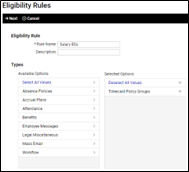
- Click Add Filter.
- Field Category: Employee Pay
- Field: Pay Type
- Operator: In
- Filter Value: Select applicable Salary types. Click Done.
- Click Save.

Create a Policy Group
- Navigate to Client Management > Time Management > Policy Groups.
- Click Add New.
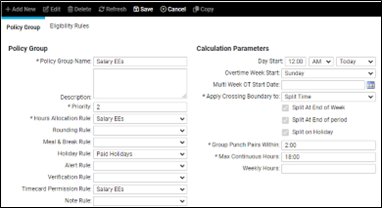
- Policy Group Name: Salary EEs
- Priority: The next available number.
- Hours Allocation Rule: Salary EEs
- Holiday Rule: Holidays
- Timecard Permission Rule: Salary EEs
- Apply Crossing Boundary to: Split Time
- Group Punch Pairs Within: 2.00
- Click Save.
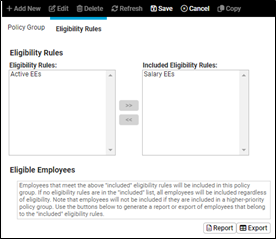
- Click the Eligibility Rules tab.
- Click Edit.
- Select the Salary EEs.
- Click Save