
CLIENT TERMINATION INSTRUCTIONS – Moving to New Provider
After the last payroll has been processed, navigate to Legal Company in isolved 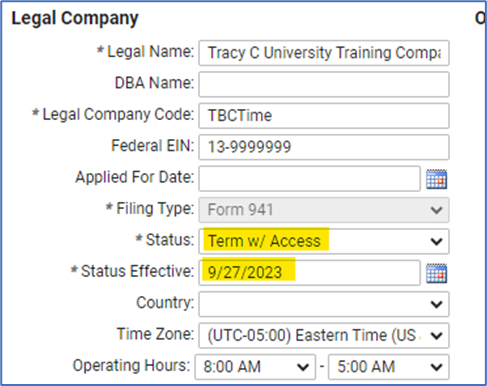
- Add New
- Status: Termed with Access
- Status Effective (last regular pay date)
- Save
- Set calendar reminder for turning off access 30 days from the day you add the termination, then
- Change Legal Status to “Terminated”
Navigate to the “Termination” tab 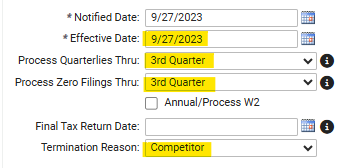
- Notified Date (When did client contact you?)
- Effective Date (last pay date)
- Process Quarterlies Thru: Enter the last quarter quarterlies will be processed.
- If the new provider is filing the current quarter, choose “Don’t Process”.
- Process Zero Filings Thru: Match the "Process Quarterlies Thru" field
- DO NOT check the Annual/Process W2 box
- Final Tax Return Date: leave blank
- Select Termination Reason: Competitor
- Select Save
Legal Service History
isolved tax - enter "End Date" matching the last day of the quarter the quarterlies will be filed
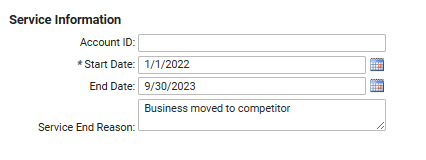
***If a client returns from a previous provider in the same year, you will add new to the legal service history and enter a new start date.
***If a client returns from a previous provider in a year other then the current year, navigate to Year End Form Options > Block Year End Reports tab. Select the year(s) and check all boxes to prevent previous filings from generating. Then navigate back to the Legal Service History Screen and add new with the new start date.
Refund/Close Unpaid Impound Taxes
If not filing for the current quarter, any unpaid tax impounds need to be refunded to the client.
- Depending on the pay schedule some taxes are paid Bi-weekly and have already been paid to the IRS
- Depending on when the terminating client has ceased payroll, some of the monthly/quarterly taxes will have been paid
- To verify which taxes have already been paid:
- Client Management > Taxes > Company Tax Liabilities
- Use the YTD filter.
- Export to Excel by clicking in the top-right corner:
- Client Management > Taxes > Company Tax Liabilities

-
- Sort by status.
- Paid: means that we have already submitted the funds to the appropriate tax authority. It will have a payment date.
- Pending: means that we have not submitted the funds and will need to refund to the client.
- If the Due Date is approaching, submit a ticket to the Tax team to request that they NOT submit any taxes for that client.
- Share a copy of this report with the Client so they know which taxes have been paid.
- Sort by status.
- Open a ticket with OPS. Provide them with the following information:
- Subject: Terminating Client (CLIENT NAME) -Tax Refunds
- Name of Client
- Date of Last Payroll
- Tax amounts that have not been paid (list by Tax Agency and amount)
- Include copy of Excel report
- OPS will verify the amounts, and will return any unpaid funds directly to the client.