
Q&A Video Training: Client Termination – Closing Business – 4/25/24
CLIENT TERMINATION INSTRUCTIONS – Business Closing
CLIENT IS CLOSING BUSINESS
(includes PEO’s and Sold Businesses with new EIN)
For Clients being terminated due to NSF payroll covered by Franchise, see article NSF Payrolls
FUTA Credit Reductions
**NOTE** for Clients terminating due to Business Closing, be aware of potential FUTA credit reductions. There is a chance that any state projected to have a credit reduction can repay their debt to the Federal UI by November 10th , eliminating the credit reduction for that year.
There are 2 ways to handle possible credit reductions on a closing business:
- BEST PRACTICE: Do NOT collect the FUTA credit early. If the 940 is filed without the credit reduction, then the IRS will send the client a bill for the balance owed. As a courtesy, let the client know that this is a possibility and that they are responsible for paying any FUTA credits directly.
- You can make the final payroll date for 12/31/YYYY to close out and pre-charge the credit reduction. If the state ends up repaying their debt by the November deadline, there would be an overpayment, and the funds would be returned directly to the client after the 940 is filed the following January.
US DOL Article: FUTA Credit Reductions
University Article: FUTA Credit Adjustment Payroll
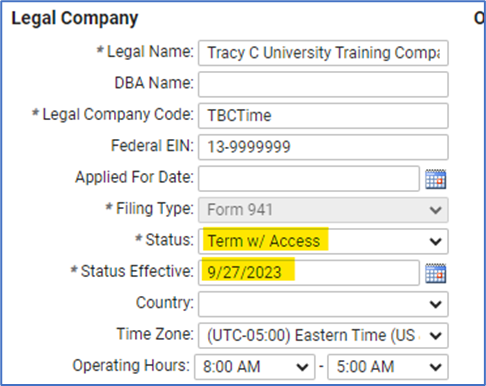
After the last payroll has been processed, navigate to Legal Company in iSolved
- Add New
- Status: Termed w/ Access
- Status Effective (last regular pay date) (MUST be in same year as filings needed)
- Save
Navigate to the “Termination” tab
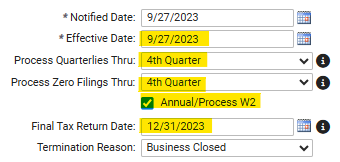
- Notified Date (When did client contact you?)
- Effective Date (last pay date) (MUST be in same year as filings needed)
- Process Quarterlies Thru: 4th Quarter
- Process Zero Filings Thru: 4th Quarter
- Check the Annual/Process W2 box
- Final Tax Return Date: 12/31/YYYY
- Select Termination Reason: Business Closed
- Select Save
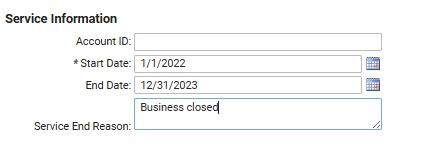
Legal Service History Screen
- isolved Tax
- End Date: 12/31/20XX
Tax Maintenance Screen
- For each tax account that needs to be closed, click on the name in the Tax Column
- Check the box that says “Mark Return as Final”, and enter the Last Pay Date. If Payroll Vault will be filing $0 reports through 4th quarter, enter 12/31/YYYY as the Last Pay Date.
- If the last payroll has already been run, run a $0 payroll with the Final Billing to record the “Mark Return as Final” and any other settings that may have been updated since running the final payroll.
- After the last set of quarterlies are filed, verify with each tax agency that all applicable accounts have been closed.
- Some state agencies will automatically close the accounts when the “Mark Return as Final” is checked, but some won’t. Don’t assume!
- Best practice is to verify either by logging in to the account (if you have access) or phoning the agency directly.
Final Billing
- Provide client a quote for year-end processing
- Charge for each Quarterly filing
- Charge for each W2 and 1099
- If there are employees in a state with a potential FUTA Credit Reduction, set the Pay Date for 12/31/YYYY and collect the Credit Reduction
- Pre-bill the quarterlies and W2's/1099's using the One-Time Billing screen
- Disable the quarterly/year end billing items in the Billing Items screen
- Create a Special Payroll, marked as “Last of Year” (if you have deleted the Payroll Run Schedules this will be automatically selected)
- Confirm that the Pre-billing looks correct, and that no additional wages are showing up
End of Year
- Make sure that the last payroll run has the “Last of Year” column checked in the reporting screen.
- If it isn’t checked, you can run a $0 payroll before 12/31 of that year
- Verify that the appropriate end-of-year tax forms are filed and the W2/1099’s are sent out
- The Year End Report Archive should be Populated for the client