
- When you receive a tax notice, it is very important for you to do some research before submitting an OPS or TAX ticket. You are more familiar with your client, so working through the following questions will help the Corporate OPS and TAX teams identify and solve problems more efficiently:
- Start by looking up the period for which the notice is covering.
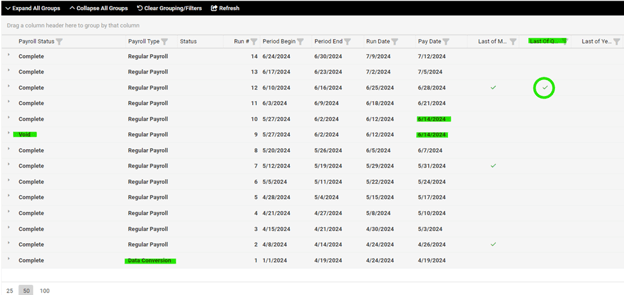
- Reporting > Report Archive
- Was this for a period before or after the client was running payroll in isolved?
- What is the payroll type: Regular Payroll, Special Payroll, Data Conversion
- Is there a green checkbox for last of Quarter/last of Year (if applicable)?
- Was there a voided payroll in that timeframe? What were the circumstances of the void? How long between when the original payroll was run and the Void was processed?
- Reporting > Return Archive
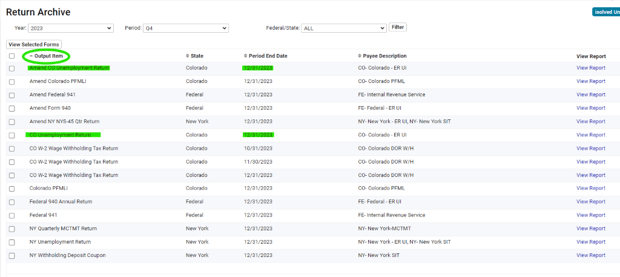
- Are the proper reports in the return archive? Compare the Summary reports with the Tax Notice: Do the numbers in the notice tie out to the reports that were generated in isolved? If not, can you use them to determine the amounts due in the in the notice?
- Are there any Amendments in isolved? Sort by Output Item so the Amendments pop to the top
- What is the difference between the original and the amended reports? Can you explain why there is an amendment and tie out the difference?
- Client Management > Taxes > Company Tax Liabilities
- Filter by QTD or YTD for the tax period that you are searching.

- Look at the last 3 columns. If they have Process Date/Payment Method/Process batch information, then they were paid by PV Corporate.
- Look at the Status Column.
- If they say “Paid” then they were paid by PV Corporate, and the cash is with the respective taxing authority.
- If they say "Prepaid”, then isolved thinks that the cash has already been paid to the various taxing authorities. Thus, the amounts will show up on the reports, but no money will be sent.
- If they say “Pending” then isolved thinks that the money is in the Corporate impound account and will be paid out through Corporate before the Due Date.
- If they say "Held" then isolved thinks that the money is in the Corporate impound account, but it will not be paid until the status is changed back to "Pending".
- Try to locate any missing tax funds that might match the amount on the Tax Notice. You can click on the Export button on the top-right to download this report into Excel to make sorting and searching easier.
- Filter by QTD or YTD for the tax period that you are searching.
- Client Management > Tax > Conversion Tax Liability Maintenance
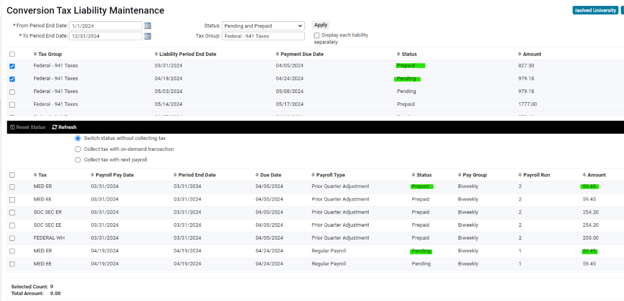
- Switch Status Without Collecting Tax: The status is switched from Prepaid to Pending or vice versa.
- No ACH file is created, and no cash is moved.
- Collect tax with on-demand transaction:
- The status is switched, and isolved creates an ACH file immediately to be uploaded separately from a payroll run.
- If this is a CREDIT, you cannot process it and must submit an OPS ticket to refund any impounds to the client
- Collect tax with next Payroll
- The impound appears on the next Payroll Summary and is collected with the next payroll
- If this is a CREDIT, you cannot process it and must submit an OPS ticket to refund any impounds to the client
- University Article: isolved Tax – Conversion Tax Liability Maintenance
- Important Reports to help with your research:
- Tax Filing Management > Tax Utilities > Interim Reconciliation Report
- Production Utilities > Service Bureau Reports
- Expected Tax Return Checklist: See which forms will be generated. Also can be used to identify missing tax account numbers and verify filing and payment methods
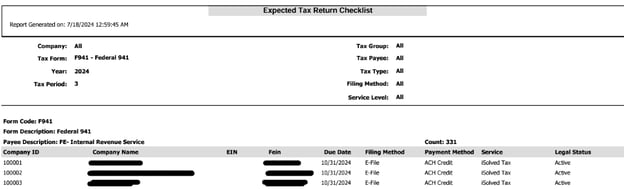
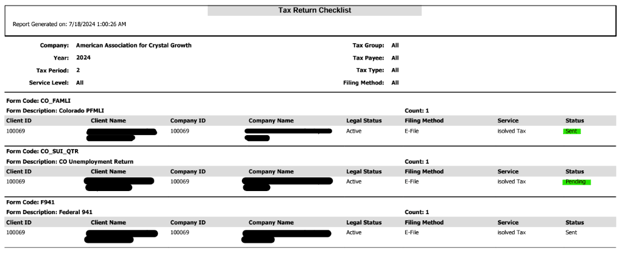
- Tax Return Checklist: Shows all Tax forms that have been generated with a status of Sent or Pending
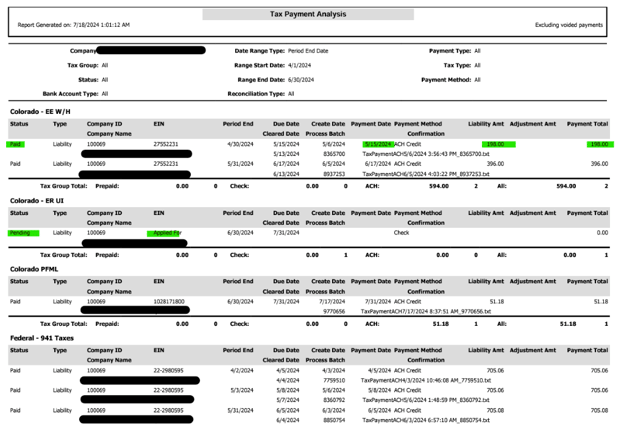
- Tax Payment Analysis: Shows all Tax Payments that have been made. Includes the Process Batch number and the Confirmation Date
- Important Reports to help with your research:
- Power of Attorney: Do you have the Power of Attorney forms filled out, signed and uploaded to isolved?
- Account Access: Do you have access to the online accounts for your clients?
- If possible, verify that the payments and dates line up with the payment history in isolved.