
QBO Integration Transmission Setup –
- Setup the integration component to send the files from isolved to QuickBooks
- Navigate to security > client Users.
- Chose the client user that needs to login and authenticate QuickBooks
- Click the role membership tab
- Select Client User – QuickBooks Online Transmitting
- Navigate to legal services
- Select and enable QuickBooks online
- Under Legal Service Options
- QB Date Option: Pay Date – this becomes the QB journal entry effective date
- Check the box for “Use Account Description” – if this box isn’t checked, the report will only send account numbers
- General Journal Option – best practice – select Summary By Account, Class, Name, Job
- Under Legal Service Options
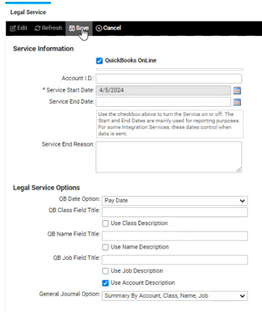
- Select and enable QuickBooks online
- Setting up the transmission
- Navigate to Data Transmission Settings
- Add New
- System Data Transmission: QuickBooks Online
- Transmission Description: QBO (Client Name)
- Save
- Navigate to Scheduled Report Options
- Two reports will have been added to the options:
- QuickBooks Online Check Detail
- No need to map the check detail if all employees are direct deposit
- Even if an EE receives a check, this report can be opened and the transactions entered manaully
- QuickBooks Online General Journal Export
- Add transmission settings to the export
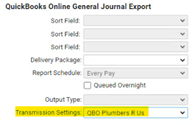
- Add transmission settings to the export
- QuickBooks Online Check Detail
- Two reports will have been added to the options:
- The client user that has the QuickBook Online Transmitting role will need to login to isolved
- They will navigate to Data Transmission Settings
- Click on the spyglass
- Click “Connect to QuickBooks”
- This will take them to the Sign in for QuickBooks to be able to connect the isolved account with QuickBooks Online account
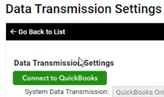
- Navigate to Data Transmission Settings