
Printable Instructions for Setting up and Printing W-2's using the Print Utility
University Articles:
Installation and Troubleshooting – isolved Print Utility
PAYROLL VAULT PRINT UTILITY
Please be advised, Print Utility is only compatible with Microsoft Windows operating systems 64 bit and up. The purpose of the Print Utility app is to provide you with a tool that will allow your payroll processing team to print multiple batches of clients at one time.
Printing W-2's Using the Print Utility
- Log in to the Print Utility
- Choose Year End Batch Print
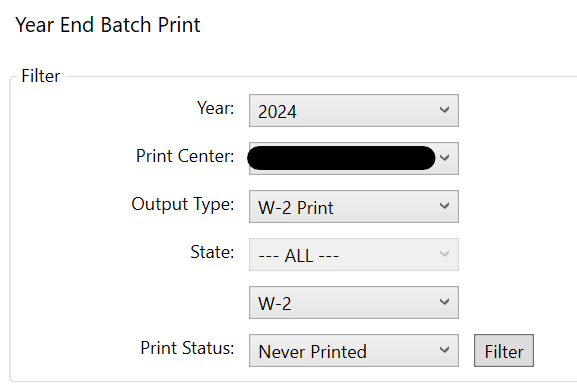
- Select the Year, and Your Print Center
- Output Type: W-2 Print
- Leave the State at ALL
- In the box underneath State, choose either W-2 or W-2 Pressure Seal, depending on which type of W-2you need. If you don’t have a pressure sealer, then you can use plain paper to print W-2
- Leave the Print Status on Never Printed
- Click Filter
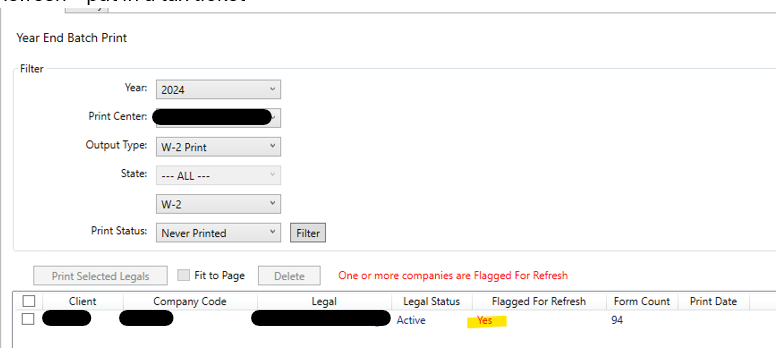
- Select your clients and click on Print Selected Legals
If the client is Flagged for Refresh, please submit a Tax Ticket:
Printing W-2's in isolved
How to print only one W2, or if you want to print the missing W-2's for the employees that gave electronic consent:
- After January 27, you can print individual W-2's out of the Employee Self-Service Area
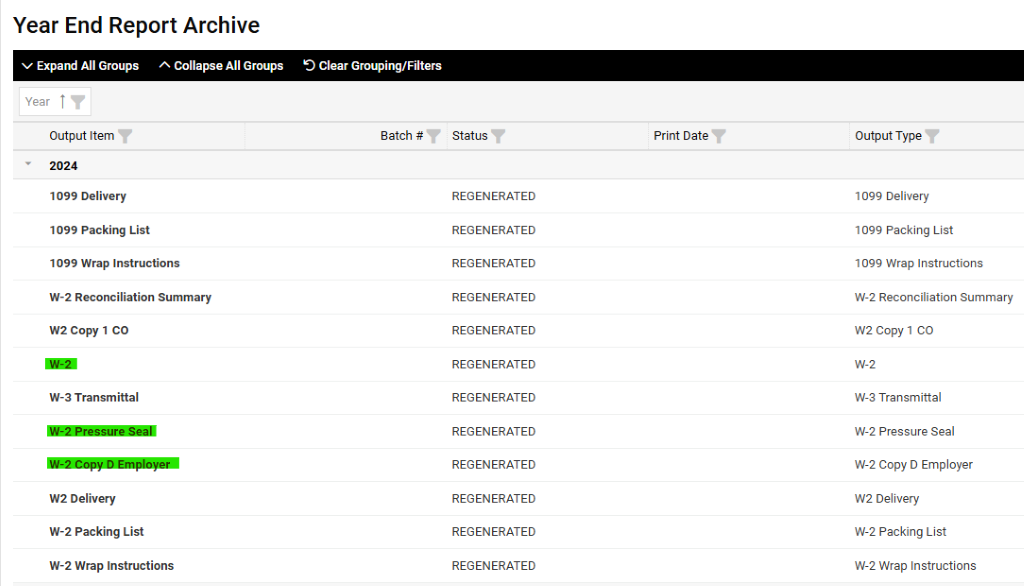
- Prior to January 27, you can re-print the W-2's in isolved:
- Reporting > Year End Report Archive
- W-2 or W-2 Pressure Seal
- These will only contain the W-2's that did not have electronic consent
- W-2 Copy D Employer
- These will contain ALL of the W-2's. However, they are printed with 2 employees on a page so you will need to cut the page in half after printing.
Installing the Print Utility
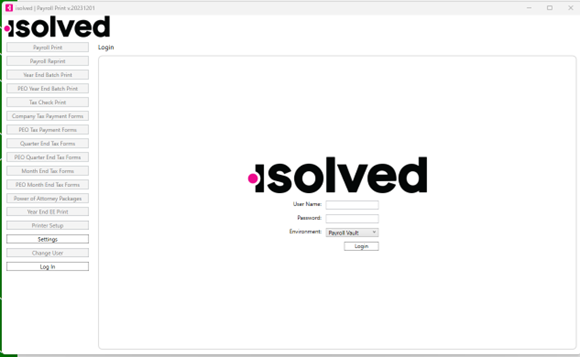
- If you do not have the latest version of the isolved Print Utility, you will need to uninstall the older version before installing the newer version
- Click on the following link to initiate the application download: https://tools.infinisource.com/print/
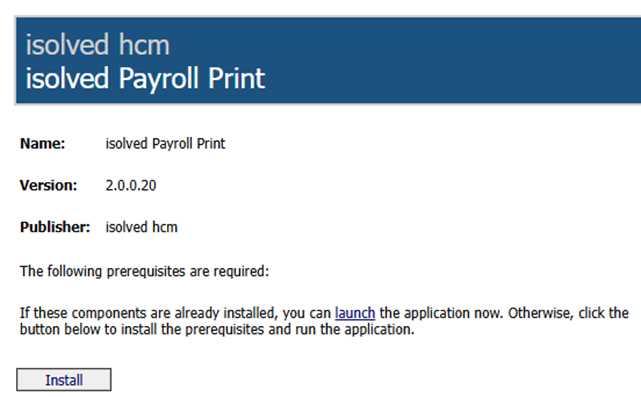
- Step 2 will open a setup.exe ‘install’ in your favorite browser – click install and follow the instructions in the wizard
- Once the install has completed, find the utility by clicking on the Windows start menu > navigating to iSolved HCM > click iSolved Payroll Print
- It is helpful to “pin” the app to your taskbar after opening this for the first time. You should see the latest version of 2024 in the upper left corner of the app once it is opened.
- After opening the app before logging in navigate to “Settings” on the left side of the screen and enter the following information on the Settings screen:
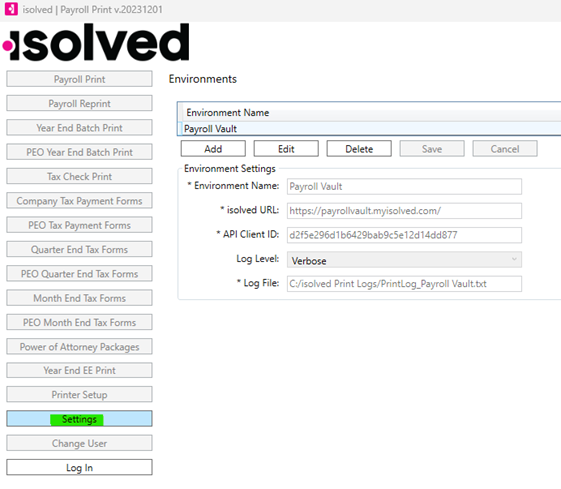
You can copy and paste the Information below:
Environment Name: Payroll Vault
iSolved URL: https://payrollvault.myisolved.com/
Client ID: d2f5e296d1b6429bab9c5e12d14dd877
Log Level: Verbose
Log File: this is the folder path on your computer in which the payroll log files will automatically save to after print jobs have finished.
Usually a folder can be created on your C Drive where these logs are stored, so your file path will look like this: C:/Name of folder/PrintLog_Payroll Vault.txt. Click “Save”.
It is imperative the Log File be set, so the payroll logs can be saved to the designated folder for troubleshooting purposes.
- Once the Settings have been saved, log into the app using the same credentials as your iSolved login.
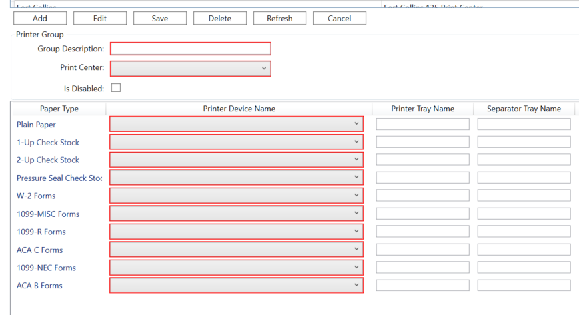
- Navigate to Printer Setup → click Add
- Enter Group Description: i.e Name of your Franchise
- Select your print center from the drop down: i.e. drop down → select the Printer Device Name for each paper type (highlighted in red above) → enter tray names if needed (i.e. Tray 1, Tray 2 etc.) leaving the field blank should default to the settings on the printer → click Save.
TO TEST PRINT: Navigate to Payroll Print on the left and select your location from the Print Center drop down. Next select your demo client and click “Send Selected Payrolls to Print” to test print your first checks!
Important tips when using the iSolved Payroll Print:
- Print jobs are processed through your printer’s print queue, they are only initiated by the iSolved Payroll Print. Typically the actual print queue can be found by going to “Scanners & Printers” of Windows system settings and clicking on the name of the printer performing the print jobs (this is something your IT person should confirm and assist you with).
- Printing jobs can get stuck in a “Printing” status for many reasons, but the most common reasons include:
- Network connection
- Size of the print job
- Device driver for your printer
- Typically a report that is stuck in “Printing” status in iSolved or the iSolved Payroll Print will still print for you. If the report ends up printing, you can clear the print job that is still showing “Printing” status by
-
- Log into iSolved Payroll Print > Payroll Print
- Select the client at the bottom of the screen
- Click “Clear Print Jobs”
- However, if a report does not print and you do not see it queued in iSolved under Reporting > Report Archive
-
- Check the setup of the reports/checks in iSolved first
- Make sure the report is appropriately scheduled under Client Management > Client Maintenance > Scheduled Report Options
- If any of your print jobs are stuck in “Printing” status and they do not print, pull your Print Log (the location of the print logs are explained in the instructions from the Setup Call) and send to partneroperations@isolvedhcm.com or submit an OPS ticket so they can open a ticket with isolved
- Also ensure the correct Print Center is selected on the pay group under Client Management > Client Maintenance > Pay Group in iSolved, to ensure the correct clients will show when the Print Center is selected in the iSolved Payroll Print.
- Check the setup of the reports/checks in iSolved first
- Sometimes you will see a red exclamation point next to a client in the Payroll Print screen in iSolved Payroll Print. There are two places which you will see a red exclamation point:
-
- If this exclamation point appears in the list at the top you can find the error details in either the history tab or the Print Log which you created in step 5 above.
- If this exclamation point appears next to print jobs in the queue under “Print Job Name” at the bottom, the symbol is warning rather than an error. A message will appear if you hover over the exclamation point, and will indicate if the print job is no longer being recognized by the utility or if you need to check your network connection.
- While the alignment of a check or tax form can depend on the format selected in iSolved (such as pressure seal or 1 Up Check), the size of the paper (such as legal or letter) is not determined in iSolved or the iSolved Payroll Print.
- Paper size is designated by the printer settings, and is usually found in Windows printing preferences or on a software the printer came with. The settings of the printer’s paper size is something your IT department will need to confirm and assist with.
- If using the iSolved Payroll Print to print year end forms such as W2s, 1099s, you have the option “Fit to Page” on the Year End Batch Print screen to try and force the alignment of the forms onto the paper size being used.
Please ensure if more than one computer has the iSolved Payroll Print app installed on it, they all have the same “Printer Device Names” as well as the same “Tray Names” under Printer Setup in the app. This will cut down on printing errors, checks/reports not printing to the correct trays, or clients not printing at all.