
Internal FAQ - Payroll Anywhere
Payroll Anywhere – Mobile Payroll Processing
Client Setup
- Company and Pay Group Criteria
- Client User must be an Employee Workspace user (AEE) – i.e. the client user must be listed as an employee
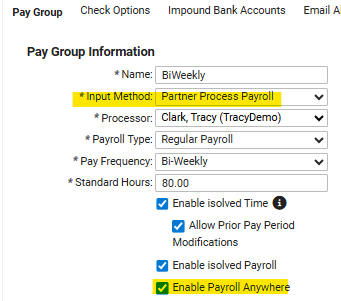
- Pay group input method must be either Client Process Payroll or Partner Process Payroll
- Company and Pay Group Setup
- Step 1: Enable payroll run date notifications
- Navigate to Client Management > Client Maintenance > Contacts.
- Add a new contact or edit an existing contact.
- Under Notifications, enable the Payroll run date reminder for the client user.
- Step 2: Enable Payroll Anywhere on the pay group
- Navigate to Client Management > Client Maintenance > Pay Group.
- Open the Pay Group tab.
- Check Enable Payroll Anywhere.
- Click Save.
- Step 1: Enable payroll run date notifications
- Note: The Payroll Anywhere task will generate either the day before the pay run date or immediately when Preview Payroll is selected for any pay group that has Enable Payroll Anywhere enabled.