
Paykonnect Process for Payroll Vault
Paykonnect Integration Process
- Email sales@paykonnect.com and include the following information as it is required for the Paykonnect setup:
- Business Name
- Payroll Vault ID
- Users (name and email address) you want setup in your Paykonnect environment
- A list of Investment Company maps to add into your database
- In return, Paykonnect will send a contract for signature. Once signed and returned, Paykonnect will begin setting up your environment. Once this is completed, they will send an email with next steps and more information. In the meantime, continue with steps below.
- Discuss with the client that we need to establish communication between:
- Their internal payroll person:
- Responsible for submitting and approving payroll. This person will be responsible for logging into their 401k employer portal and approving submission files during the implementation process.
- Client’s customer service rep at the 401k plan (e.g., the recordkeeper):
- The customer service rep will ask some initial questions about the integration of the client, the internal payroll person, and the payroll company.
- Questions generally include:
- The types of compensation eligible for deferral
- Groups of eligible/ineligible employees
- The number of FEI’s (e.g., sometimes referred to as subsets by the 401k provider)
- The client and/or Payroll Vault may need to complete a form authorizing the implementation of the integration and a 360 file feed.
- Will make an introduction to someone in the payroll back office
- This person will work with the client and the payroll provider to get the integration established
- Once test files are submitted to the 401k plan via Paykonnect, the payroll back office will review the test files for accuracy, map the test file to their system, and give feedback on any changes that need to be made to the test file
- This person will also let us know when the client’s integration is ready to go live. The “live” date and the “360” file feed date may be different. Do not turn on the 360 feed until the 401K recordkeeper gives authorization to do that.
- Client’s investment advisor:
- The client’s investment advisor who helped them establish the plan
- This person has a good insight into the details of the plan including:
- Summary plan document
- Eligible Compensation
- Eligible employees
- Eligible dates
- Safe Harbor/matching contribution calculations and whether those amounts should be part of the integration file.
- Third party administrator:
- Any questions that cannot be answered by the investment advisor or the 401k plan back office can generally be researched and answered by the TPA
- The TPA may need to make amendments to the plan document to allow for eligibility calculations through the Paykonnect integration.
- Their internal payroll person:
- Once all parties above are informed of the payroll integration with the 401k plan via Paykonnect, the 401k plan back office will send an emailed communication:
- Informing each party of their responsibilities
- What their time line of implementation is from receipt of test files to going live
- Ask any other details to help them understand the integration process
- Set up iSolved
- Add Legal Services
- Setup plan details in Deferred Comp
- Setup 401k to include all deduction types
- Setup 401k to auto correct match
- Setup tabs for contribution based matches or the other tab for safe harbor
- Setup employee contributions under Benefits | Deferred Comp – 360 integration will not work otherwise. The regular deductions area is considered an override field
- Setup any Loan Reference Numbers in the employee deduction section, all other details should be done under Benefits | Deferred Comp
- Once Paykonnect team sends your access credentials to login to Paykonnect, and welcome email with details, watch the Paykonnect training video.
- Email Blair.motl@payrollvault.com to confirm you are active.
iSolved System Configuration and Setup:
- Navigate to Client Management > Client Maintenance > Legal Services
- Enable Paykonnect Retirement
- This will generate Paykonnect files that can be used as test files when trying to go live within Paykonnect.
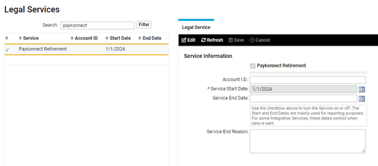
- This will generate Paykonnect files that can be used as test files when trying to go live within Paykonnect.
- Enable Paykonnect Retirement
- Next, set the plan ID on the Client Management > Benefits > Deferred Comp screen. This must be included so Paykonnect can begin receiving data after the next payroll is processed.
- Transmission Schedules will need to be setup by corporate. This step only needs to be done once and a Hubspot ticket will need to be submitted.
- Auto Transmission Setup (needed to push files out of isolved and to Paykonnect)
- Auto Import Setup (needed for 360 integrations)
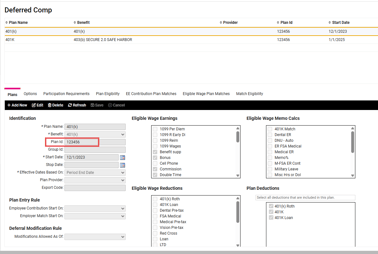
Plan Setup in Paykonnect Login
Copy and Paste this link to view how to set up a 401K plan within Paykonnect - https://payrollvault1.sharepoint.com/:v:/s/TrainingFocusGroup/EbLAdbHLOLVHiYeXlNCXuxcB400dxfGsJUHtCZt70GXr-A?
- Payroll Vault will then set up the client in Paykonnect:
- Use the Instructions in the Paykonnect Website under System> Help
- Log into Paykonnect:
- www.paykonnect.com
- To create a new company set up:
- Go to 401k > Company > Create New > Enter Information > Save
- For “Input File” – select “iSolved” for all clients using the iSolved payroll software
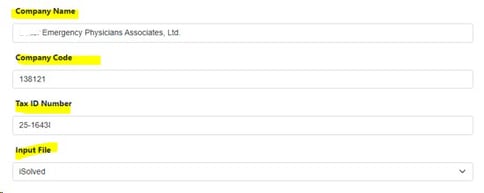
- This sets up the base company and automatically takes you the next screen to continue setting up the company. Click on “Create New Plan”>
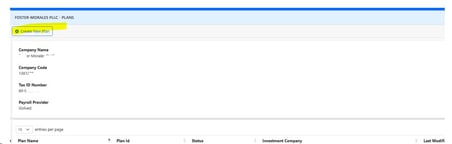
- Choose correct recordkeeper/investment company from the drop-down menu > Click “Select”
- This will take you to the plan settings page
- Under “General Settings”, access the Setup Guide to guide you through how to set up the plan on the General Settings screen:
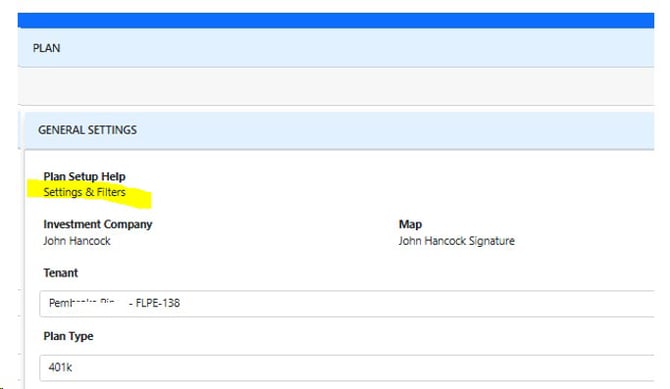
- Tenant: (Will be your service group number)
- Plan Type: 401K, IRA, etc.
- Plan Name: Input the name of the plan
- Status: Test (will always be in a test status until we are told to go LIVE)
- Pay Frequency: Choose the pay frequency from the drop down menu
- Plan id: Input the contract number given to you by the 401K plan provider
Use the instructions specific to the Investment Company and the Instructions in the Paykonnect Website under System> Help to finish the initial set up.
Once the initial set up is complete, email the payroll back office and let them know:- The next payroll pay date and that this is the day to expect the test file.
- Ask them any specific information you need (e.g., loan numbers, etc).
- Remember to send Payroll Vault client communication letter that the client is ultimately responsible for monitoring the 401K plan reporting.
Regenerate Paykonnect Retirement Files in isolved
If Paykonnect or 401k provider did not receive the Paykonnect file you can regenerate the file and send the file manually if needed. Before doing that, you’ll need to ensure that the steps above have been completed.
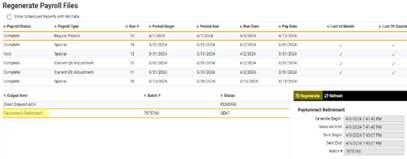
- Navigate to Client Management > Payroll > Regenerate Payroll Files.
- Choose the pay date
- Select the Paykonnect file and push Regenerate on the black bar.
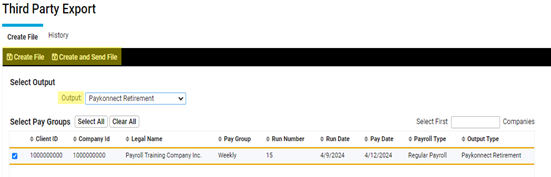
- Next, you’ll go to Production Utilities > Export File Creation > Third Party Export
- In this screen you’ll want to update the Output to Paykonnect Retirement
- Select your client and choose Create File or Create and Send File
- Create File: Will create the Paykonnect file for you to download and upload through your Paykonnect login
- Create and Send File: Create the Paykonnect file and will be sent from isolved
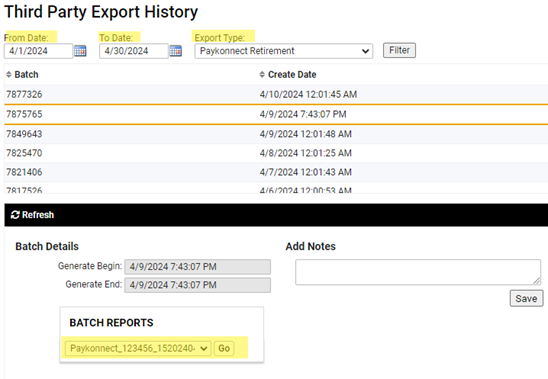
- To download the file from isolved go to Production Utilities > Third Party Export History and download the Batch Reports
- Adjust the from and to dates to when the file was regenerated
- Export Type: Paykonnect Retirement
Important Reminder Regarding Retirement Plan Contributions Letter
Hello,
As part of our payroll services, we are happy to assist with calculating and preparing the files needed for your retirement plan contributions. We strive to make this process as simple and accurate as possible for you.
We kindly remind you that:
- It remains your responsibility to review all retirement plan records to ensure employee wages and contribution amounts are accurate.
- You are responsible for continually validating the funding of contributions from your bank account.
- While we provide the necessary reports and files, Payroll Vault is not responsible for verifying final contributions or ensuring the completion of funding.
- Should something need correction, please notify our office immediately.
We recommend reviewing your reports regularly to help ensure everything remains accurate and on schedule.
As always, if you have any questions or would like additional support in reviewing your records, we are here to help.
Thank you for the opportunity to support your business.
Sincerely, Payroll Vault