Q&A Video: 01.02.25: ACH and Tax Liabilities
Opening Tax Liabilities in iSolved
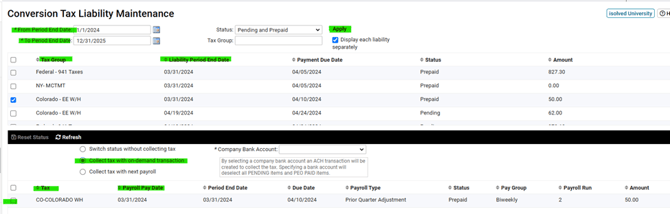
- Client Management > Client Utilities > Tax > Conversion Tax Liability Maintenance
- Choose your client
- Set your filters
- From Period End Date: First date of the quarter of the liability
- To Period End Date: Last date of the quarter of the liability
- Select Apply
- On the top half of the screen check mark the tax group and liability period end date for the liability that needs to be opened
- On the bottom half of the screen check mark the correct tax and payroll pay date of the liability that needs to be opened
- BEST PRACTICE: Select “Collect Tax with On-Demand Transaction”
- This creates an ACH file that you can collect immediately
- If you need to choose “Collect tax with next payroll”, make sure that you delay resetting the status until you are ready to process the payroll, as flipping the status will create the liability immediately
- Select Reset Status on the black bar to generate the liability
- Submit the ACH file
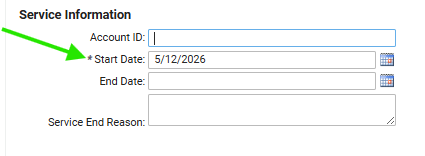
Note: If taxes are greyed out in the Conversion Tax Liability Maintenance screen, temporarily update the Legal Service History Start Date to the beginning of the quarter for which you are opening liabilities. After opening the liabilities, revert the Legal Service History date to reflect the first live payroll date in iSolved.
Navigate to Client Management > Legal Service History