An NSF in payroll means Non-Sufficient Funds. It happens when there isn’t enough money in the business bank account to cover the payroll debit, so employee pay and taxes can’t be funded. This can cause delays, reversals, or added fees. To prevent it, the business should always make sure funds are in the account before the scheduled payroll debit, and if an NSF ever occurs, they should contact Payroll Vault right away so the issue can be resolved quickly.
Payroll should be processed five business days prior to the pay date to ensure enough time in the event there is an NSF. When an NSF occurs, Natpay will send you an email with the return attached. The client will need to be contacted immediately notifying them of the return.
If your client has an NSF payroll … PLEASE do not VOID the entire payroll before talking to OPS. Follow these instructions:
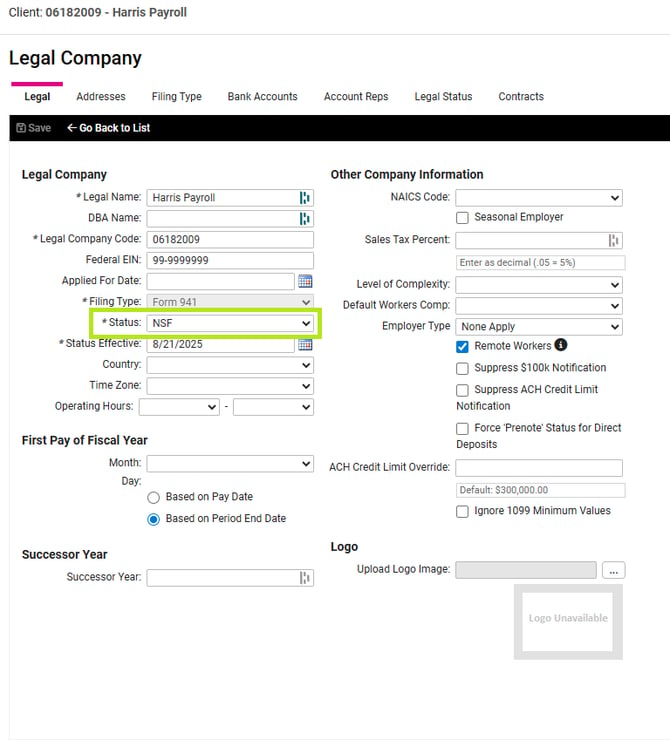
- In iSolved navigate to the Client Management > Client Maintenance > Legal Company
- Select the edit icon (pencil)
- Change the legal status to NSF under the Legal Company > *Status
- Setting status to NSF will place all pending liabilities on hold and prevent the tax team from paying them out
b. All pending liabilities will be placed on hold. Navigate to Client Management > Taxes > Company Tax Liability to view the status.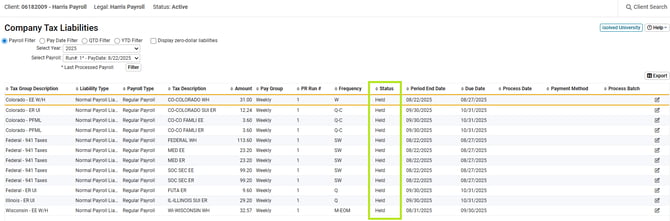
-
Correcting or Changing the Reports in isolved
If the Payroll Is correct, work with NatPay and the Client to redraft the funds or submit a wire transfer. The Tax funds have been deposited in the Corporate Tax Impound account and will not be automatically refunded.
If the Payroll needs to be changed or updated, SUBMIT AN OPS TICKET for help in getting the funds where they need to be and the reports corrected/updated.
DO NOT VOID THE PAYROLL ONCE THE BANK FILE HAS BEEN UPLOADED, even if there is a return or NSF.
If the client does not or will not have the cash to cover the funds, then NatPay will draft the payroll amount from the FRANCHISE'S OPS Account.
-
- In iSolved, navigate again to Client Management > Client Maintenance > Legal Company
- Change the Legal Company Status back to Active
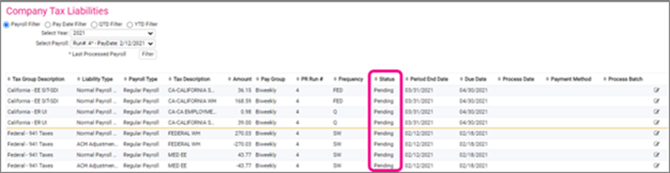
- Returning to Active removes the hold and moves liabilities back into pending statusRestore Client Status Once Funds Are Received
All Held liabilities will be Pending and ready for payment. Navigate to Client Management > Taxes > Company Tax Liability to view the status.
-
- Category: General Tax
- Priority: High
- Ticket Description: Client name, NSF Payroll Run #
- Attachment: Payroll Summary
**NOTE** Let your client know that any late tax payments that result in Penalties and Interest from the NSF payroll will be the Client's responsibility.
If the client receives a late payment notice, they will need to pay the Penalties and Interest directly.
7. Billing
The following charges should be applied: 1st NSF - $75, 2nd NSF - $150, 3rd NSF - $300 and terminate client
*** NSF Client Never Responds - Funds Never Received - Franchise satisfies ACH file***
OPS will request a screen clip of the taxes being debited from your business bank account prior to refunding. Corporate can only refund unpaid taxes for the payroll that NSFed
Moving an NSF client to Terminated
-
Open a ticket an OPS ticket
- Category: Operations
- Priority: Low
- Ticket Description: Client name - Moving from NSF to Terminated
-
OPS will schedule a meeting to assist with changing taxes Held to Prepaid
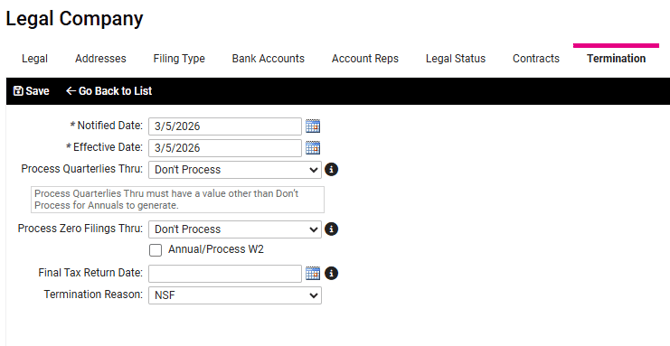
- Change Legal status to Terminated
- Notified Date and Effective Date: Date of NSF
- Process Quarterlies through: "Don't Process"
- Process Zero filing Thru: "Don't Process"
- DO NOT CHECK "ANNUAL/PROCESS W2"
- Termination Reason: NSF
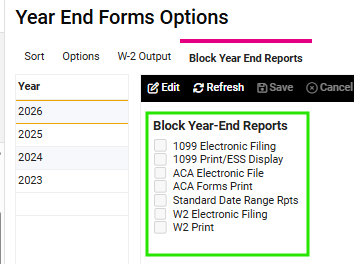
4. Navigate to Year End Report Options > Block Year End Reports.
- Check all reports to block