Third Party Administration (TPA) Access
Delaware Withholding
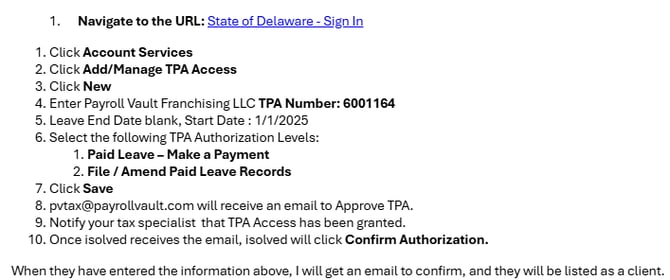
The following outlines the steps required for an Administrator to delegate Payroll Vault Franchising access to a tax account or Taxpayer Entity in the portal. Prior to getting started, you must first have Administrator access to a Taxpayer Entity to delegate Authorized User access. Please review the Linking Entity/Administrator Guide for steps on completing this process or contact your Administrator to assist you in delegating an Authorized User.
- Log in to the Portal and navigate to the Profile header. Select Manage Authorized Users.
- Review the instructions on the page and then select the Add New Authorized User button located in the middle on the right side, above the search bar.
- Enter Payroll Vault Franchising's User ID: pvfranchising.
- Enter the Registration Confirmation Number: TU00000413512. Then select Next.
- Confirm the User Information appears for the User you are giving access to. Select the checkbox(es) on the left-hand side to choose which Taxpayers you would like to give access to. It is optional to set a start and end date.
- There is an option to manually give access or to use a template for standard-level access. The Division of Revenue recommends authorizing access via a template as this is the simplest method.
- Choose a template #2 Payroll Access to grant the appropriate access. The template should reflect the information below:
- #2 Payroll Access - authorizes business functions that include filling tax returns and making payments for withholding accounts, viewing withholding correspondence, and submitting select service requests.
- You may also manually assign functions by Taxpayer Entity or by Tax Account(s). To do so, select Taxpayer Functions and/or Tax Account Authorizations. Select the appropriate functions you would like to give access to and select OK to return to the User Detail page.
- Verify the functions to be assigned and select OK. If the wrong template was chosen, select Cancel to choose the correct one.
- To proceed, select the Save button. Review the authorized user, tax accounts, and functions. Select Confirm to complete the delegation.
- You will receive a success message and will return to the Manage Authorized Users page with the newly-delegated user appearing in the list.
Delaware PFML
Delaware PFML Requirements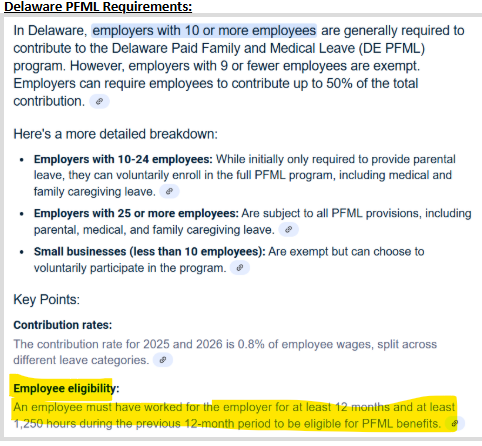
If the Employer qualifies for DE PFML access must be granted. See the instructions below.