
1. Download the following University Article before beginning
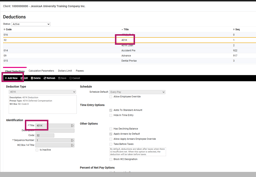 3. Open the “Client Billing Report”
- Service Bureau Legal and Pay Group Billing Import https://learning.myisolved.com/library/articles/890
- Filter for “Billing”
- Select the “Client Billing Setup” Report
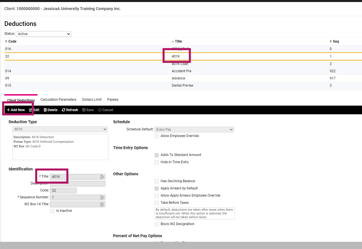
-
- Under Options Change the format to Excel. Leave the Sorting as the default setting
-
- Generate Report
- Filter for “Metric”
-
- Select “Metrics Report: New Companies By Pay Date”
- Filtering: client one year from today’s date
- Options: Format: Excel
- Generate
3. Open the “Client Billing Report”- Delete line one “Sort Option: Client Code, Company Code” and remove the cells
- Filter the “Status” for terminated and termed w/ Access. Delete these clients
- Filter the “Bill Frequency” for disabled billing items and delete
- Filter for any additional billing items such as Year End and Quarterly billing that you may not want to be updated at this time and delete.
- Filter the “Stop Date” for any item that has a value and delete
- Filter the “Pay Group” for any billing specific to a pay group (filter for anything that isn’t a blank)
- Copy and cut any pay group billing and paste to a new excel worksheet
- Pay Group billing will need to be updated manually
- Open the “Metrics Report: New Companies By Pay Date”. Remove from the Client Billing Report any company listed on the Metrics Report. *Best not to raise the billing on clients you have just taken on.
- Example: Every Pay becomes Y
- You can use the excel function find and replace to speed up this process
- Example: Client Code becomes ClientCode (no space)
- Insert a hashtag in front of any column not listed in the article
- Example: Client Name becomes #Client Name. This tells the system to ignore the column
6. Retitle the Header “PerUnitAmount” to “#Old PerUnitAmount” and “FlatAmount” to “#Old FlatAmount”
7. Add a column next to each of the above and title them PerUnitAmount and FlatAmount respectively
8. The amounts that are updated will be recorded under Flat Amount and Per Unit Amount. Anything not being updated can be left blank.- Amounts can be manually calculated or
- Utilize a formula
- To update with a percentage of the old value use =(Column Letter Column Number + percent as a decimal * Column Letter Column Number) Example: =(A2 + 0.05*A2) This adds 5% of the old value to the new value. Then copy the formula to the whole column.
- Format the PerUnitAmount and FlatAmount columns to 2 decimal places (0.00)
9. Save
10. Navigate to Production Utilities > Service Bureau Imports to load Billing Item Imports
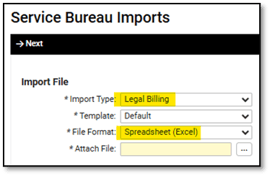
11. Test on a few clients to be sure the import is working as you expected