
https://learning.myisolved.com/library/articles/194
Accrual Type
https://learning.myisolved.com/library/articles/183
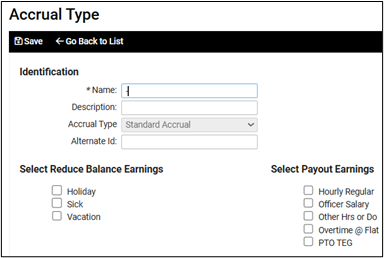
- Navigate to Client Management > Benefits > Accrual Type
- Click +Add New.
- Name the Accrual Type appropriately (Vacation, Sick, PTO, etc.)
- Accrual Type
- Standard Accrual
- DO NOT select an Earning under Reduce Balance Earnings.
- Click Save.
5. Navigate to Client Management > Benefits > Accrual Plan
6. Click +Add New
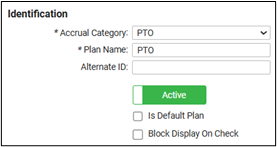
a. Accrual Category: Select the previously created Accrual Type. Note: Is Default Plan will add to the employee when they become eligible if eligibility rules are added. This should be selected after eligibility rules are created if applicable. If you do not want a default plan, employees will need to be enrolled in the accrual plan from the leave accrual screen.
b. Plan Name: Name the Accrual Plan appropriately.
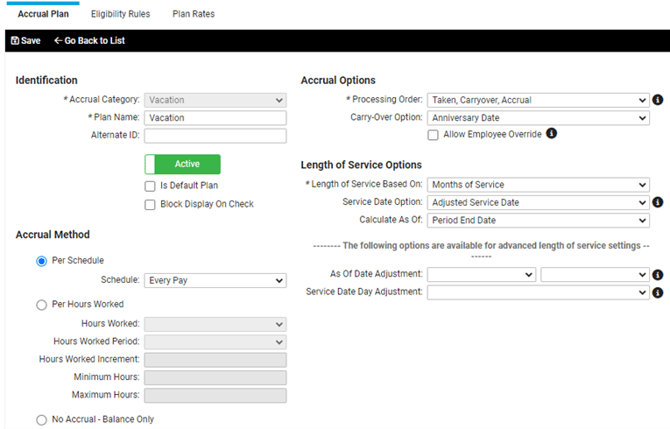
Accrual Method
- Per Schedule—Select schedules from the dropdown menu.
Note: The selected schedule will determine the factor to use when calculating Plan Rates. - Per Hours Worked— When accrual is based on the number of hours worked. Can also indicate a minimum number of hours worked to accrue and a maximum number of hours that can be used for accrual to prevent over-accruing. The Hours Worked Increment field allows to determine the frequency in which the time is accrued (for every whole hour, half hour, quarter hour, etc.). Hours worked can be setup using an accumulator.
- No Accrual—Balance only to be used when the system cannot handle the accrual outlined by the client’s plan. Balances will need to be updated manually.
Accrual Options
- Processing Order: Taken, Carryover, Accrual
- When to carryover:
- First Pay of Year
- First Pay of Fiscal Year
- First Pay of Anniversary Year
- Calendar Year (Dec. 31)
- Fiscal Year (Corporate Year End)
- Anniversary Date (Based on EE).
- Allow Employee Override allows the client to make changes to employee accruals.
Length of Service Options
- Length of Service Based On: Months of Service
- Service Date Option: Adjusted Service Date
Note: In the event the client uses Adjusted Service Date, the accruals will start at the employee’s adjusted service date. If they don't, the system will default to Hire Date. - Calculate As Of: Period End Date
Plan Rates:
https://learning.myisolved.com/library/articles/186
- Months of Service – Number of months completed before hours accrue
- Accrual Factor Per Schedule - Amount of hours accrued based on Accrual Method
- Carryover Options:
- No Carryover: No hours will be carried over into the next plan year. The employees’ balance is reset to zero at the beginning of the plan year. This applies to both positive and negative balances.
- Limited: The number of hours carried over into the new plan year will be limited to the number of hours entered in the “Carryover Limit” field.
- Unlimited: When this is selected, the employees’ entire balance will be carried over.
- Negative Only: When this is selected, only negative balances will be carried over.
- Allow Negative Carryover: Select this if the client allows their employees to enter a negative balance and they want the negative balance to be earned back by the employee.
- Carryover Limit:
- No Carryover: This field defaults to “0.00,” and is disabled.
- Limited: This field is enabled for the user to enter the total number of hours that can be carried over into the new plan year.
- Unlimited: This field defaults to NULL and is disabled.
- Carryover Expiration Days: This option can be used with the Carry-Over option of Calendar year or Anniversary Date. The Carryover Expiration Days defines how long the allowed carryover amount will be available for the employee to use.
- YTD Accrual Limit: The YTD Accrual Limit is used to stop accruals from calculating when a YTD maximum accrual has been reached (this does not coincide with the plan).
- YTD Taken Limit: The YTD Taken Limit is used to cap the number of hours that can be taken during the year (this does not coincide with the plan).
- Unavailable Balance: When this is selected, hours are accrued and stored as the “unavailable” balance. The unavailable hours accumulated are automatically moved to an employee’s available balance when the employee reaches the months of service where this is NOT selected.
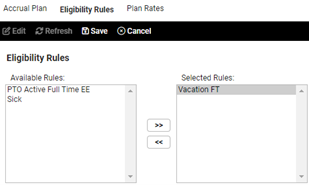
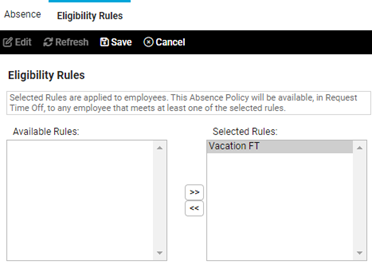
 10. Click the Eligibility Rules tab.
- Click Edit
- Select the appropriate eligibility rule from the Available Rules.
Absence Policy
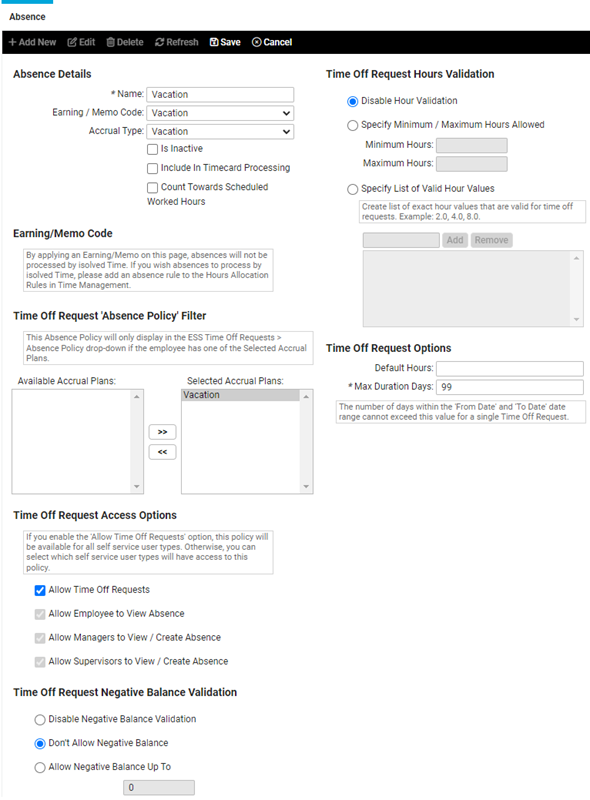
- Navigate to Client Management > Benefits > Absence Policies.
- Click +Add New and name the Absence Policy appropriately.
- Select the corresponding Earning / Memo Code.
- Select the previously created Accrual Type from the dropdown menu.
- Select the previously created Accrual Plan from the Available Accrual Plans.
- In Time Off Request Access Options, select Allow Time Off Requests.
- In Time Off Request Negative Balance Validation, select Don’t Allow Negative Balance unless otherwise stated by the client.
- In Time Off Request Options, set the desired number of Max Duration Days.
- Click Save.
(See following page for absence policy screen shot)
-
- Click Save.
- Click Save.