
Blackout period will begin Monday, January 4, 2027. Begin year-end quarterly process on Monday, January 4, 2027.
Quarter End Refresh – Tax processor will refresh for their security group
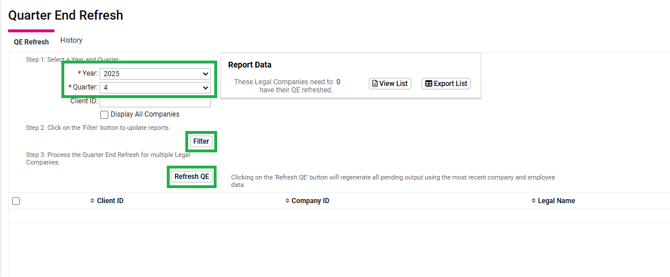
The Quarter End Refresh screen allows the user to refresh and regenerate pending tax forms with updated information such as address, EIN, rate, filing method, SSN, or employee name. Companies will populate on this screen if an update has been made prior to the last day of the month following the end of the quarter.
University Article: https://learning.myisolved.com/library/articles/570
- Navigate to Tax Filing Management > Tax Quarter End > Quarter End Refresh
- Filter for the year
- Filter for the quarter
- Select filter
- Select all clients (Note: The refresh will take 6 minutes per client)
- Select Refresh QE
- IMPORTANT – You will only preform the Quarter End Refresh once at the beginning of the quarter
W2 Refresh – Tax processor will refresh for their security group
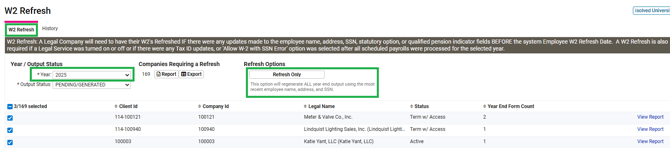
The W-2 Refresh screen displays all companies that have a legal tax period record AND have made employee name, address (includes W-2 Override Address), SSN, statutory option, qualified pension option updates, or the “Block W-2 Designation” option is changed for a client Earning, Deduction, or Memo BEFORE the system Employee W-2 Refresh Date. Companies also display if a year-end legal service was turned on/off after they processed the last payroll for the year or if a Tax ID was updated.
University Article: https://learning.myisolved.com/library/articles/3671
- Navigate to Production Utilities > Year End Dashboard > W2 Refresh
- Filter for the year
- Filter Output Status: PENDING/GENERATED
- Select all clients
- Select Refresh Only
- IMPORTANT – You will only preform the Quarter End Refresh once at the beginning of the quarter
Run an Expected Tax Return Checklist – Tax processor will run for their security group
- In iSolved navigate to Production Utilities > Service Bureau Reports
- Search for Report named Expected Tax Return Checklist
- Filter for year and quarter you are going to process
- Format: Excel
- Add a column in column A and name it Security Group
- Send a copy by email to a chosen team member to format into a Master Spreadsheet
Quarterly Processing – Auto Close Quarter End – Tax processor will close for their security group
University Article – Quarterly Processing: https://learning.myisolved.com/library/documents/890
University Article – Auto Close Quarter End: https://learning.myisolved.com/library/articles/568
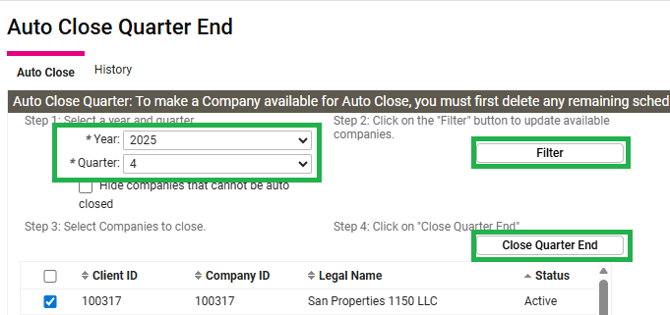
- Navigate to Tax Filing Management > Tax Quarter End > Auto Close Quarter End
- Filter the year
- Filter the quarter
- Uncheck mark hide companies that cannot be auto closed
- Select Filter
- Select all clients
- Select Close Quarter End
- If there are any companies that are greyed out that you are unable to auto close. Reach out to the franchise and let them know they'll need to process a zero payroll to close the quarter. CC pvtax@payrollvault.com on the email
Auto Close Year End – Tax processor will close for their security group
- Navigate to Production Utilities > Year End Dashboard > Auto Close Year End
- Filter the year
- Filter the status: All
- Check mark all companies
- Select Close Year End
- If there are any companies that are greyed out that you are unable to auto close. Reach out to the franchise and let them know they'll need to process a zero payroll to close the year. CC pvtax@payrollvault.com on the email
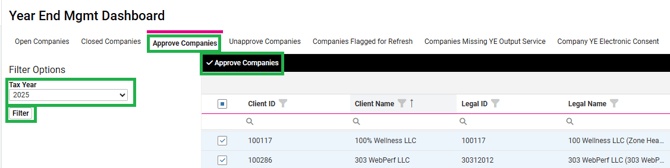
Year End Management Dashboard – Approve W2s
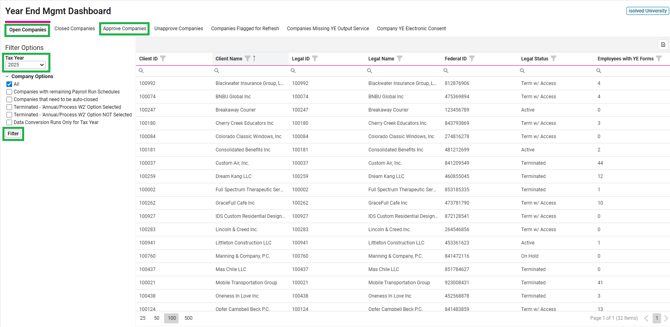
The Year-end Management Dashboard includes tabs for open companies, closed companies, approve companies, unapproved companies, companies flagged for refresh, and companies missing the service for the selected output item. Each tab includes selection criteria to filter the companies returned with the ability to export the data.
University Article: https://learning.myisolved.com/library/articles/2907
- Navigate to Production Utilities > Year End Dashboard > Year End Mgmt Dashboard
- All: Displays all open companies for the tax year.
- Companies with remaining Payroll Run Schedules: Displays all companies with un-processed payrolls.
- Companies that need to be auto-closed: Displays companies that have no remaining schedules for the year AND no legal tax period generated for the year.
- Terminated – “Annual/Process W2” Option selected: Displays all companies who have terminated service and have requested that your service bureau processes W-2s for them. This is normally for businesses who have closed during the year.
- Terminated – “Annual/Process W2” option NOT selected: Displays all companies who have terminated service and have requested that your service bureau does not process W-2s. This is normally for businesses who have changed providers.
- Data Conversion Runs Only for Tax Year: Displays companies that only had payroll runs with Payroll Type “Data Conversion” for the selected tax year. Under the tab Open Companies, review the company options filter.
- Return to Production Utilities > Year End Dashboard > Year End Mgmt Dashboard
- Under the tab Approve Companies, Select all
- Select Approve Companies on the black bar
Create W2 State Files – Tax processor will create for their states
The year-end export screens are used to create year-end files for selected companies.
University Article: https://learning.myisolved.com/library/articles/3665
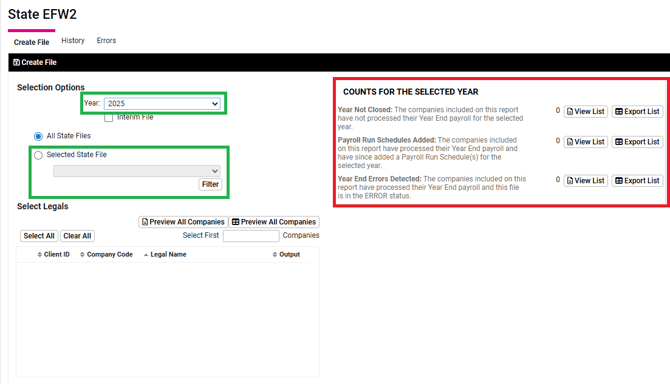
- Navigate to Production Utilities > Year End Exports > State EFW2
- Review the Counts for Selected Year
- There are three reports available:
- Year Not Closed: This report displays all companies that have NOT completed all payrolls for the selected year.
- Year-end Adjustment Scheduled: This report displays all companies that have a legal tax period AND have payroll schedules that have not been processed for the selected year. Companies are in this status when they process their last payroll of the year (legal tax period record created) and then add a payroll schedule for the year. This could be a Year-end Adjustment or any other run type.
- Year-end Errors Detected: This report displays all companies that have negative wages or taxes. This report is provided because negative values are not valid and need to be fixed before creating the year-end output item. This report also displays output items that are in an ‘ERROR’ status for the legal tax period.
- Any Errors, Tax processor will need to reach out to the franchise immediately and notify them there are errors. CC pvtax@payrollvault.com on the email.
- Filter for year
- Filter for Selected State File
- Select Filter
- Select your state
- Select Create File on black bar
- Select History tab
- Select Batch
- Under Batch Reports choose your file and save to computer
- Upload file to applicable state
- Note: Some states may require the quarterly filing at same time as W2s
- Enter confirmation number in notes in iSolved
- Print a copy of the confirmation to the OneDrive folder
- OneDrive > Payroll Vault Franchising > Payroll Service Group > PV Tax > 2026 > Q4 Filing > Your folder
- If there is an issue with the upload immediately reset the batch in iSolved on the black bar, Reset All Companies, take out the issue and recreate the file. Reach out to the franchise immediately to notify them CC pvtax@payrollvault.com.
Create 1099 State Files – Tax processor will create for their states
The year-end export screens are used to create year-end files for selected companies.
University Article: https://learning.myisolved.com/library/articles/3665
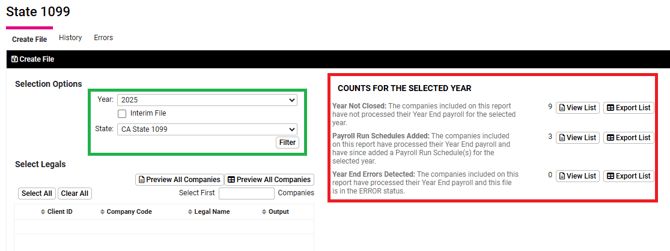
- Navigate to Production Utilities > Year End Exports > State 1099
- Review the Counts for Selected Year
- There are three reports available:
- Year Not Closed: This report displays all companies that have NOT completed all payrolls for the selected year.
- Year-end Adjustment Scheduled: This report displays all companies that have a legal tax period AND have payroll schedules that have not been processed for the selected year. Companies are in this status when they process their last payroll of the year (legal tax period record created) and then add a payroll schedule for the year. This could be a Year-end Adjustment or any other run type.
- Year-end Errors Detected: This report displays all companies that have negative wages or taxes. This report is provided because negative values are not valid and need to be fixed before creating the year-end output item. This report also displays output items that are in an ‘ERROR’ status for the legal tax period.
- Filter for year
- Filter for State
- iSolved will only filter for the following States
- CA - California
- CT - Connecticut
- MA - Massachusetts
- MO – Missouri
- OR – Oregon
- PA - Pennsylvania
- UT – Utah
- VT – Vermont
- iSolved will only filter for the following States
- Select Filter
- Select clients
- Select Create File on black bar
- Select History tab
- Select Batch
- Under Batch Reports choose your file and save to computer
- Upload file to applicable state
- Note: Some states may require the quarterly filing at same time as W2s
- Enter confirmation number in notes in iSolved
- Print a copy of the confirmation to the OneDrive folder
- OneDrive > Payroll Vault Franchising > Payroll Service Group > PV Tax > 2026 > Q4 Filing > Your folder
- If there is an issue with the upload immediately reset the batch in iSolved on the black bar, Reset All Companies, take out the issue and recreate the file. Reach out to the franchise immediately to notify them CC pvtax@payrollvault.com.
Quarterly Processing – Quarter End Approval
University Article: https://learning.myisolved.com/library/articles/571
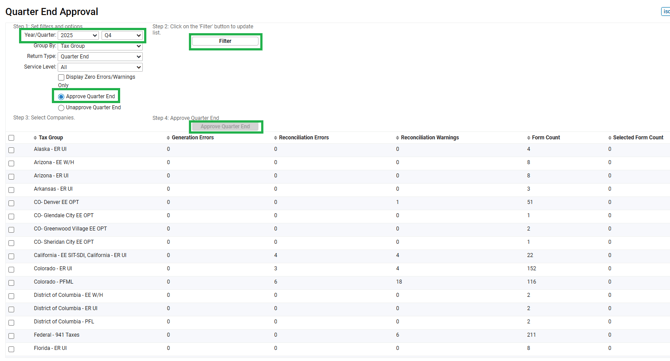
- Navigate to Tax Filing Management > Tax Quarter End > Quarter End Approval
- Filter year
- Filter quarter
- Filter Group by: tax group
- Filter Return Type: Quarter End
- Service Level: All
- Filter bubble: Approve Quarter End
- Select Filter
- Select forms to approve
- Select Approve Quarter End
- If the forms are set to paper they will land in the Print Tax Forms Screen
- If the forms are set to e-file they fill land in the Create Tax E-Files screen
Quarterly Processing – Print Tax Forms
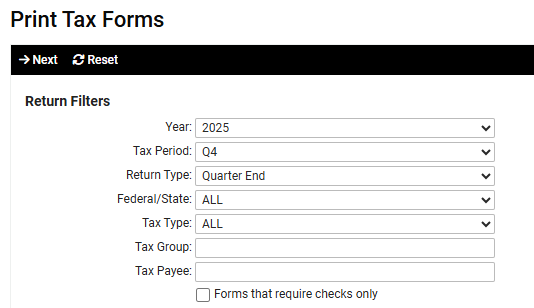
- Navigate to Tax Filing Management > Tax Quarter End > Print Tax Forms
- Filter for year
- Filter for tax period (quarter)
- Filter Return Type: Quarter End
- Filter Federal/State: ALL
- Filter Tax Type: ALL
- Select Next
- Add any mailing to +Printing list
- Mailing label: Mailing labels can be found in Teams under Teams > Tax Department > Files > Mailing Labels folder
- If you need to create a label: copy the address from the tax form, open a word document – choose landscape and paste the address in the word doc. Center the address to the page and increase the font to 26. Upload to teams Mailing Labels folder
- Any year-end forms that need to be sent with W2s, specify so printing team can ensure they are printed and mailed together.
Note: You can preview in the print utility what the person printing will see on their end
Quarterly Processing – Create Tax E-Files
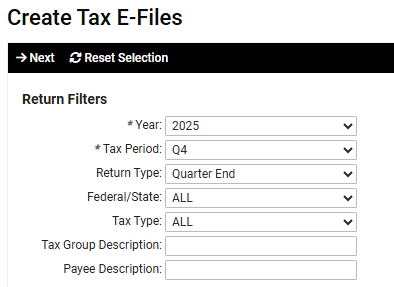
- Navigate to Tax Filing Management > Tax Quarter End > Create Tax E-Files
- Filter for year
- Filter for tax period (quarter)
- Filter Return Type: Quarter End
- Filter Federal/State: ALL or your state you are filing
- Filter Tax Type: ALL
- Select Next
- Select the form to e-file
- This step will depend on how the e-file is setup!!!
- If you are able to transmit the forms in the system select Create and Transmit E-file
- If you are creating a file to upload to the state, select Create E-files
- Navigate to Tax Filing Management > Tax Quarter End > E-File History
- Filter your date range
- Select your batch
- Under Batch Reports choose your file and save to computer
- Upload file to applicable state
- Enter confirmation number in notes in iSolved as well as Confirmation Number Area and Save
- Print a copy of the confirmation to the OneDrive folder
- OneDrive > Payroll Vault Franchising > Payroll Service Group > PV Tax > 2026 > Q4 Filing > Your folder
- If there is an issue with the upload immediately reset the batch in iSolved on the black bar, Reset All Companies. Reach out to the franchise immediately and let them know of the error that needs to be corrected ASAP. They will need to submit a ticket if they need assistance.
- Re-create the file taking out the client with errors and resubmit file
- If payment needs to be made on state site, compare amount to open liabilities in Tax Filing Management > Tax Payment Processing > Process Payments screen
- Pay from GBC Tax Account (only pay amounts of money we have already collected)
- Date the payment in iSolved as the same date you are processing the payment
- ACH – Override due date to two business day out from date you are making the payment
- Print a copy of the payment confirmation to the OneDrive folder
- OneDrive > Payroll Vault Franchising > Payroll Service Group > PV Tax > 2026 > Q4 Filing > Your folder
- In 24-48 hours you will need to go back into the state to ensure all of the file was accepted. If the file has failed the return has not been filed and you will need to correct the errors and resubmit the file at the state level. Reopen the file in iSolved
Double Check
- Navigate to Production Utilities > Service Bureau Reports
- Search the Report Tax Return Checklist (This will be pulled per service group)
- Filter the year
- Filter tax period
- Format Optional: PDF or EXCEL
- Generate Report
- View Report for any pending status
- Navigate to Tax Filing Management > Tax Quarter End > E-File History
- Use the Tax Return Checklist Report and E-File History screen to check per state that all files have been uploaded and accepted
- Navigate to Tax Payment Processing > Process Payments
- View if there are any outstanding payments that need to be made
- If so, check with original filer so they can make the payment