
The purpose of this SOP is to outline the procedures for accurately recording printing tasks in the Printing Spreadsheet for tax filings, tax checks, and tax amendments. This includes entries generated from printing associated with processing tax payments within the Process Payment screen.
For detailed instructions on how to process tax payments, please refer to the Payment Processing - Georgia Banking File Transmission SOP.
Martha will be in the office Tuesday and Thursday to print.
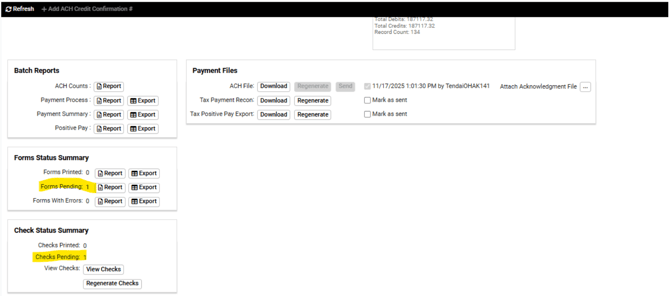
- Once payment has been processed, open Payment History
- The page will show the Forms Pending and Checks Pending
- Enter the description of the payments in Add Notes
-
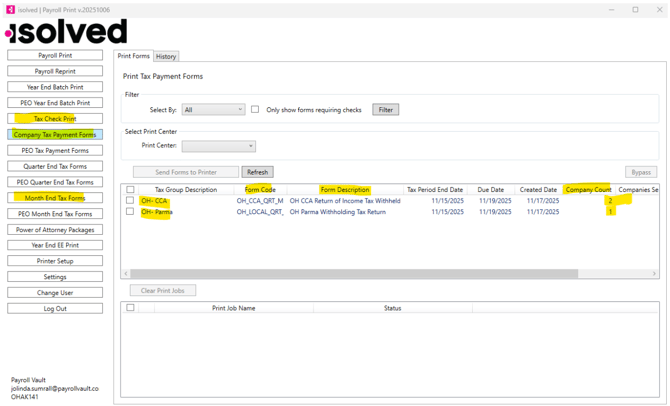
Open The Print Tool
-
Check the tool to ensure the printing is in the tool for the print team including the Check Batch #
-
If the printing is for the Monthly Close check Month end Tax Forms
- If the printing is for the quarter close check Quarter End Tax Forms
-
If the printing is for the Locals and Regular Processing check Company Tax Payment Forms
-
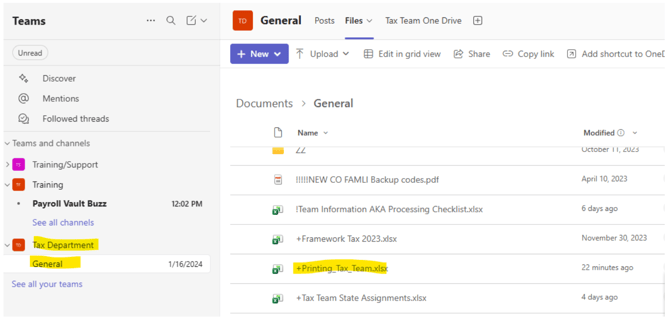
- Open the Print Spreadsheet located in Teams

-
Enter the information in the Print Tool onto the Printing Spreadsheet. This tells the printing team where to print from in the Print Tool
-
Below are the Column Headers that you fill in

-
Column Headers:
- Service Group
- Print Screen
- Quarter
- Return Type (Form Description)
- Tax Form (Form Code)
- Form Count (How many forms are in the Print Tool for that Form Description and Form Code)
- Tax Check Print (Check Batch #)
- # of Checks (In the iSolved Batch associated to the Form Description and Form Code)
- # of W2’s (Used at Year End)
- Period end Date
- Due Date
- FedEx Tracking # (If the forms and checks are sent FedEx)
- Mailing Label/ FedEx Label
- Tax Processor
- Notes (Any additional notes for the Printing Team)
- Attachments (if any attachments)
- Once you have entered all the information onto the spreadsheet the Printing Team will be able to print without an issue.
Note: If you have a print job with over 10 forms/checks, you'll want to push out that batch alone. This will help the printing team since checks cannot be printed by agency, only by batch.