- Navigate to Tax Filing Management > Tax Payment Processing > Process Payments
- Choose your filters - See article: Payment Processing Checklist
- Note: Each payment filter should be checked daily (Payment Processing, Amended Return Payment Processing, Adjustment Payment Processing, and Zero Return Processing).
- Choose your filters - See article: Payment Processing Checklist
- Select Next
- Select by check mark the tax payments you would like to pay
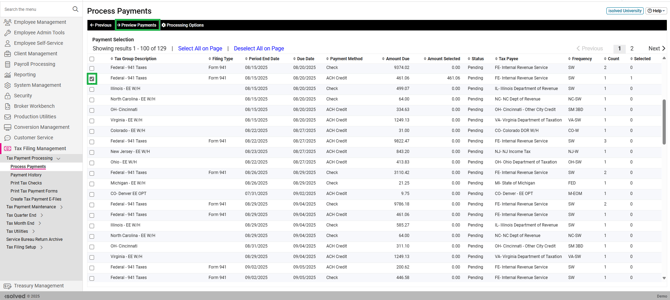
- Select Preview Payments
- Review reports for accuracy and any errors
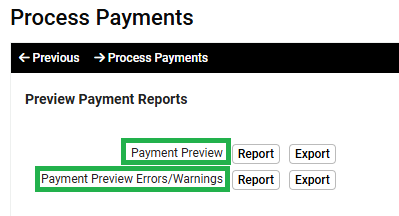
- Select Process Payments
- Navigate to Tax Payment Processing > Payment History
- Select the Batch on the top half of the screen
- Select the Send button on the bottom half of the screen (DO NOT check mark “Mark as sent”. This will cause the file to look as if it has been sent but the file will sit here and not be transmitted.
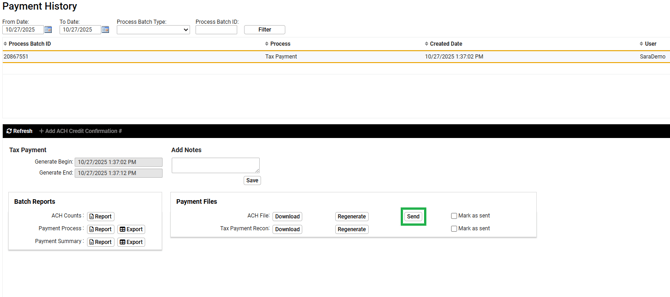
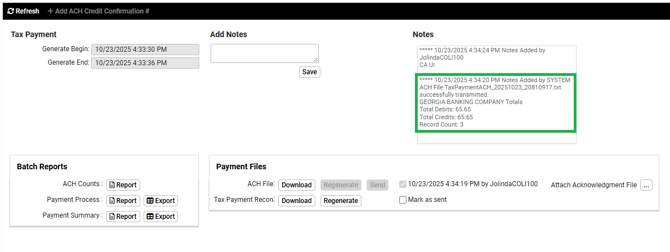
- Refresh the batch on the black bar
- You will see the confirmation in the notes stating the ACH File has successfully transmitted
- At the end of each day, review the Service Bureau Report: Tax Payment Audit Export for the Service Groups you pay taxes
English
