
Oklahoma UI - Agency Site (Click Sign in with Login.OK.gov)
Go to Quarterly Contribution Report > Upload Contribution Report > Select File Upload
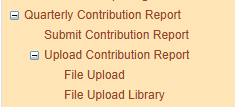
Select Quarter > Select Year > Start File Upload > Upload File
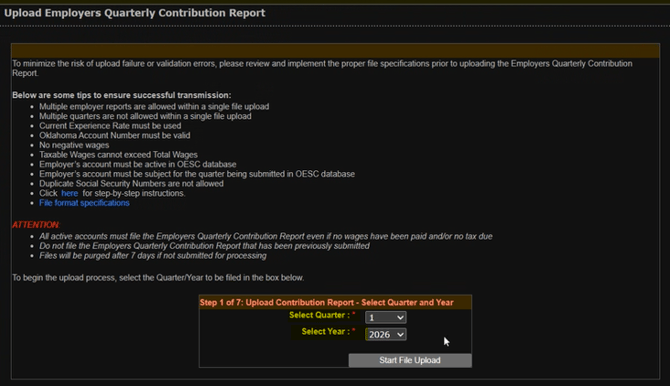
After uploading the file, click on: Click here to view the file processing status
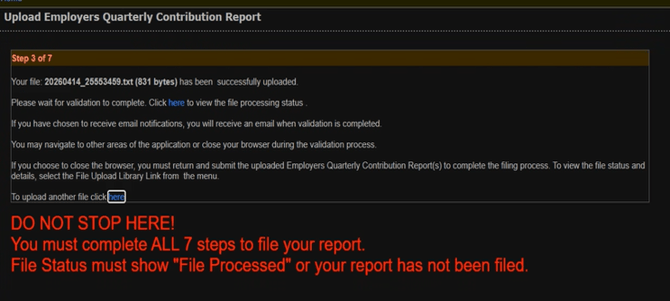
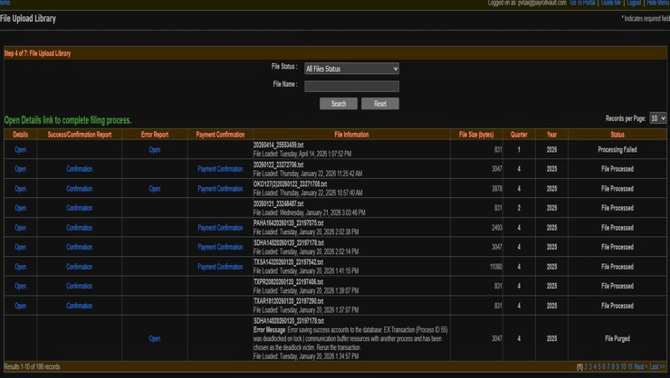
Go to File Upload Library and check the status (Check Errors or Success/Confirmation). You can click search to refresh the list.
If an error occurs, you will need to open and see what the error message states. Then email the SG to have it fixed.
Once you see the Confirmation, click open
Reports Ready to be submitted > Click Continue
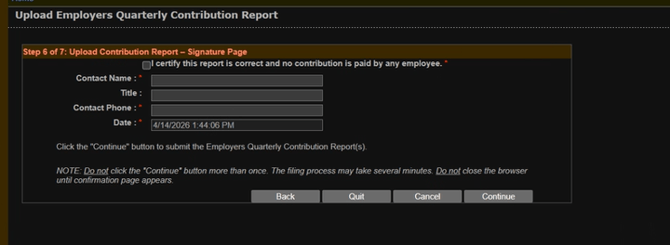
Fill in the information below
Contact Name: Sara Harris
Contact Phone: Your direct number
Click Continue
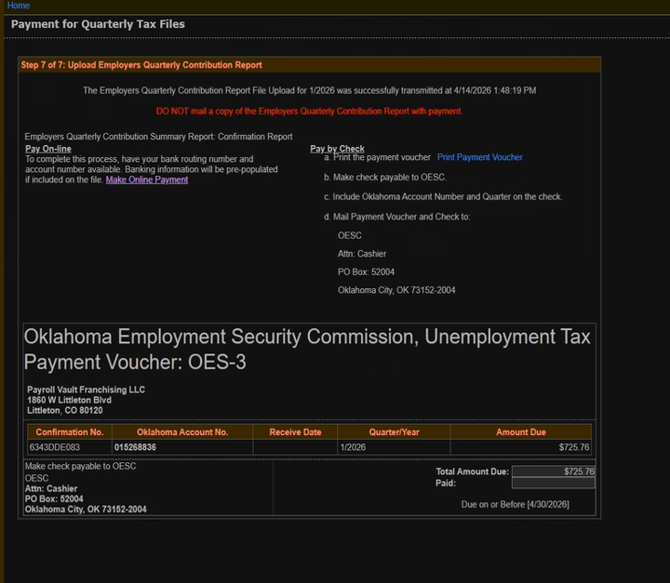
Payment Screen > Click Make an Online Payment
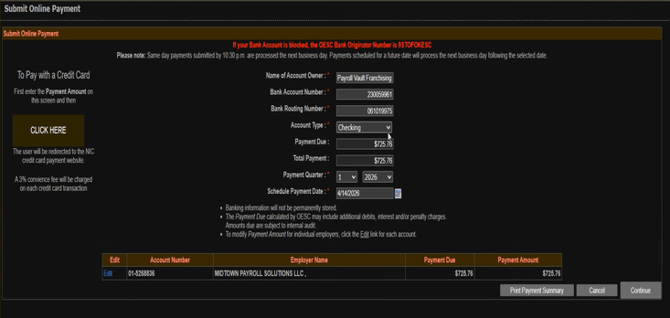
Click Edit to change the amount due to match what is in iSolved if needed. ( Make sure to click save if you make edits)
Click Continue > Click Submit
Confirmation
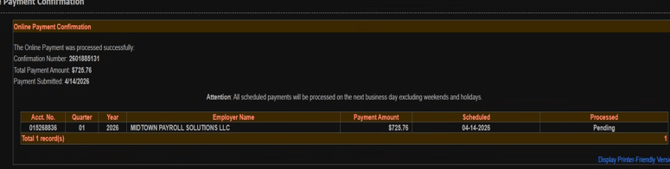
Copy and paste the Confirmation #, Total Payment Amount, and Payment Date into iSolved Payment and e-file screens.
Enter the Confirmation # into the Master spreadsheet for the client.
Make sure to enter the information on the P&I spreadsheet (Debits from tax account sheet)
Oklahoma WH - Agency Site
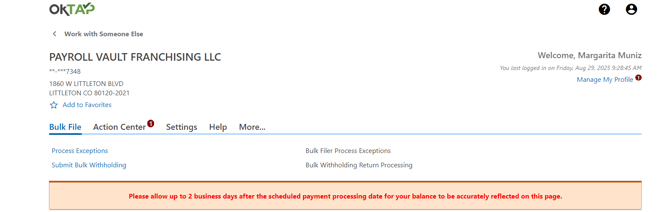
Scroll down or search for Payroll Vault Franchising LLC and click on the account.
Click on Bulk File > Submit Bulk Withholding
Add your file from iSolved by clicking "Add attachment"

Click next and proceed with prompts to submit the file.
Copy and paste the Confirmation # to the efile screen and the Master spreadsheet for the client. Make sure to save the confirmation page to your folder.