
Maryland Unemployment
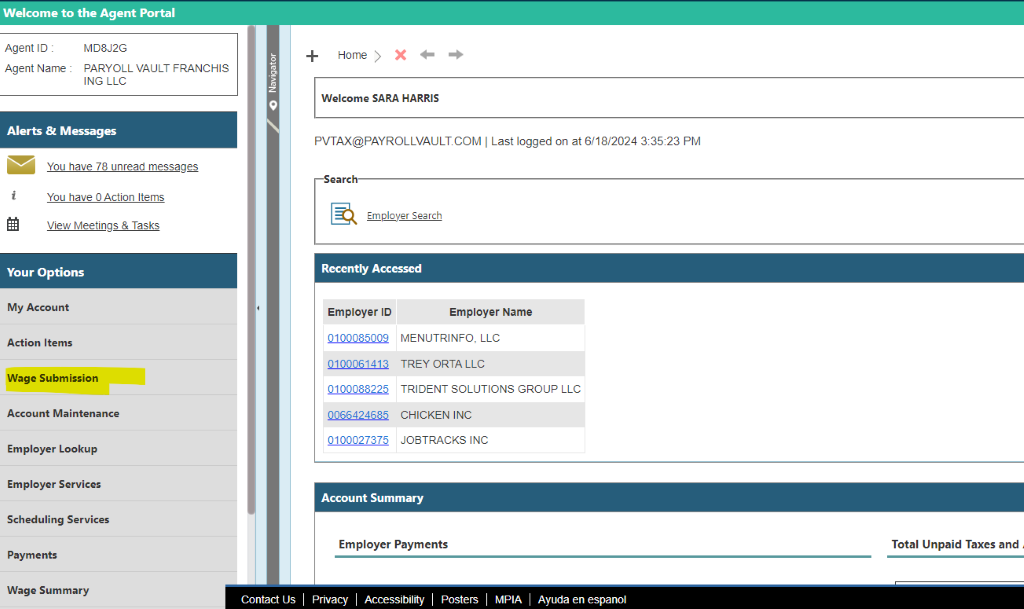
- Log into BEACON
- Under Wage Submission – select Next
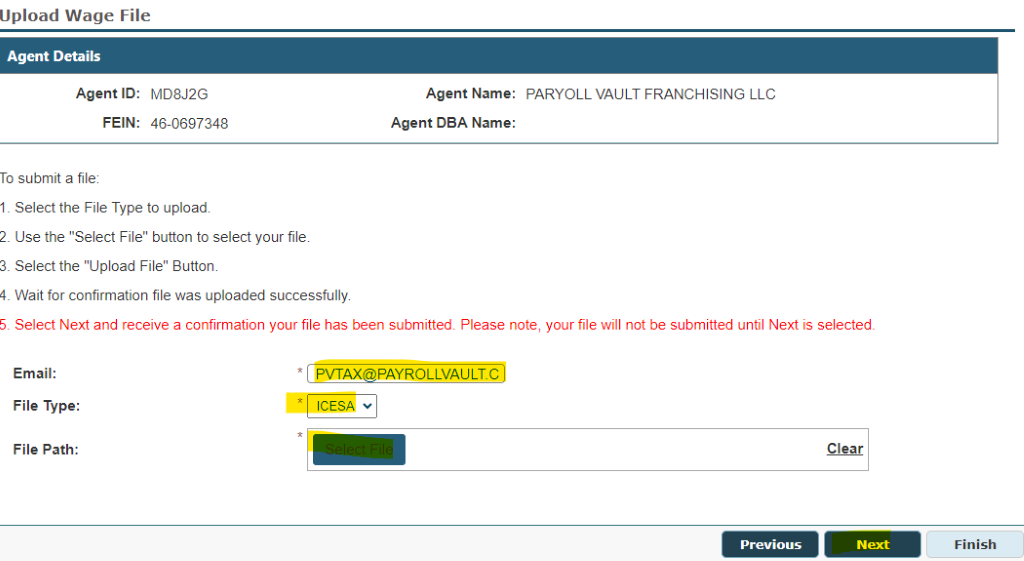
- Enter the pvtax@payrollvault.com email and select the file. Click Next and copy the confirmation to enter in iSolved notes (email confirmation will be sent as well)
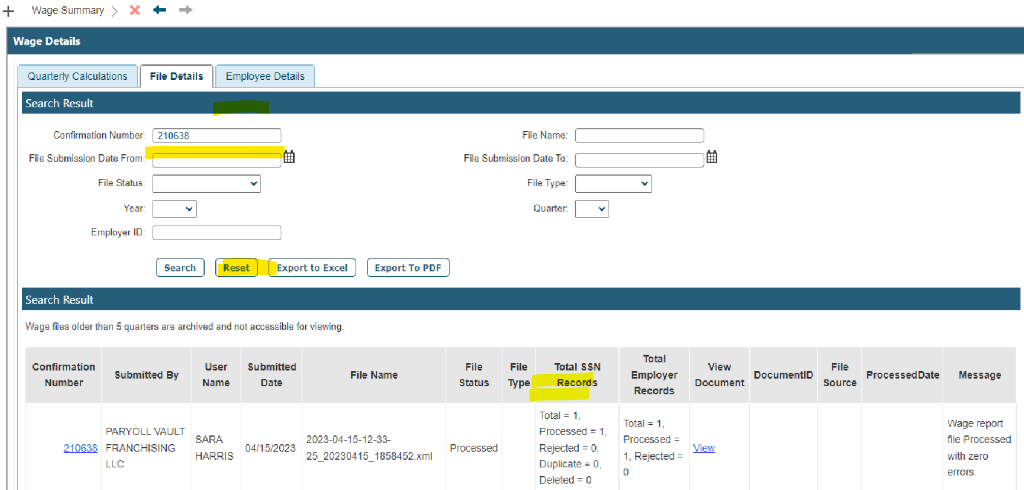
- Once the file has been uploaded – follow the steps to verify the file under Wage Summary
- Under Wage Summary – click on File Details – Enter wage submission confirmation – Search
- Once you verify the file - it is time to process the MD SUI payment in iSolved. Process the payment file as normal and iSolved will generate an Payment Allocation Excel file - save this on your C:/
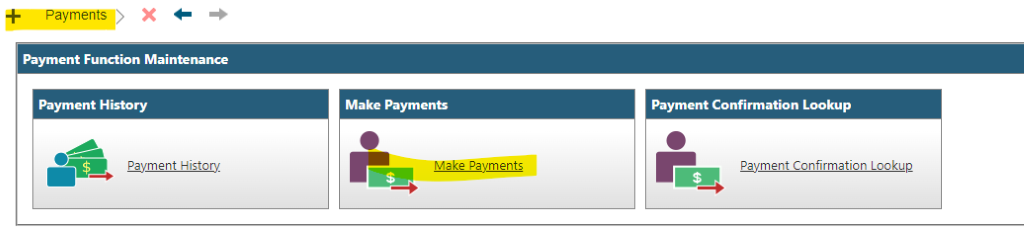
- Go back to BEACON under Payments – Make Payment
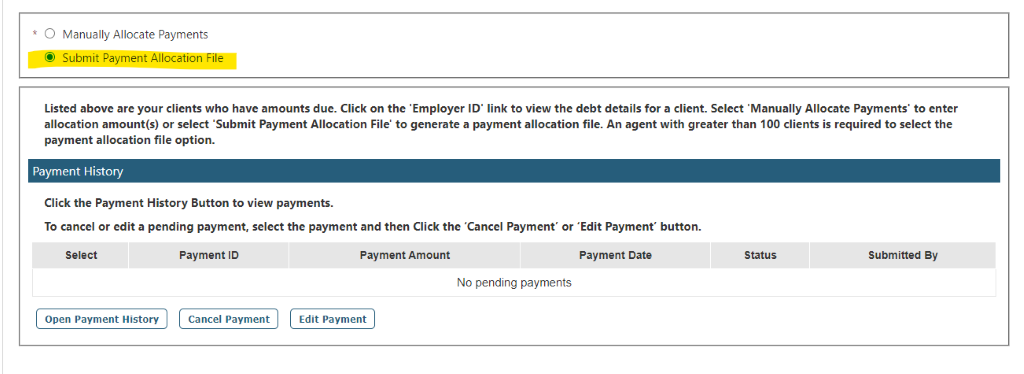
- Select Submit Payment Allocation File – Click Next
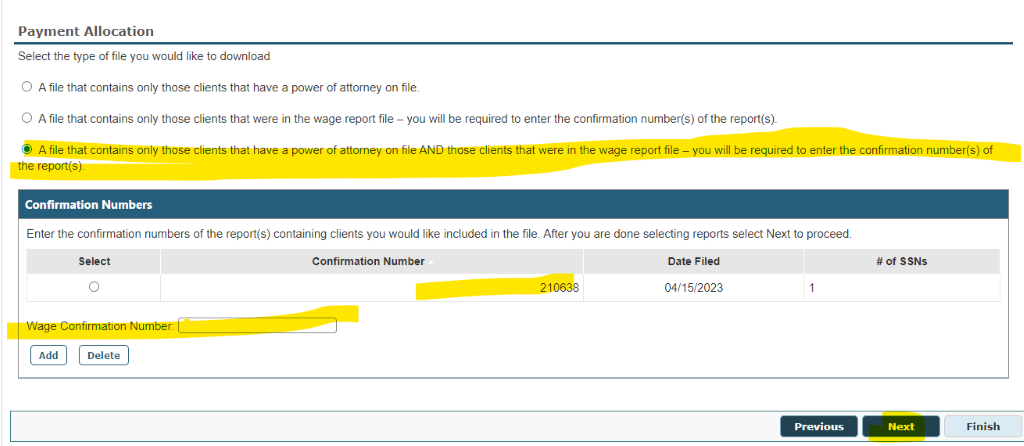
- Select the third option (A file that contains only those clients that have a power of attorney on file AND those clients that were in the wage report file – you will be required to enter the confirmation number(s) of the report(s).)
- Enter Wage confirmation number| Click Add| Click Next
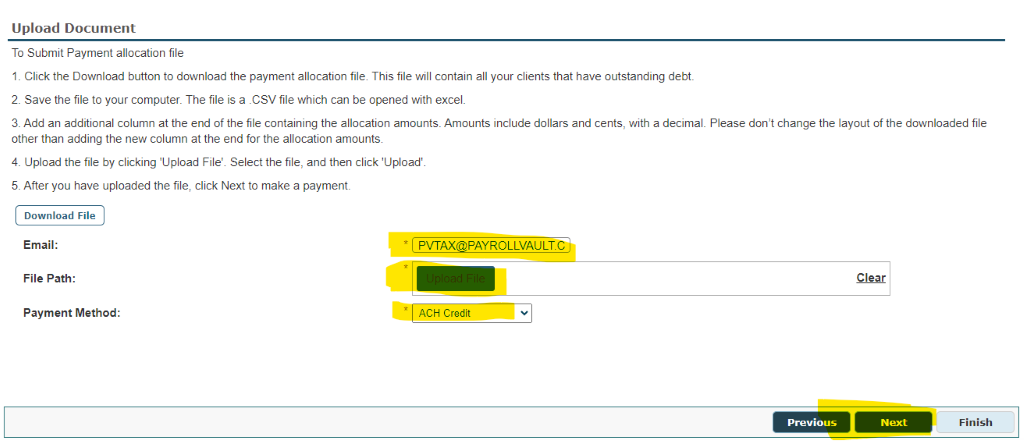
- Under the Upload Document – Enter pvtax email| Under Payment Method – enter ACH Credit and upload file – click Next
- Save the confirmation
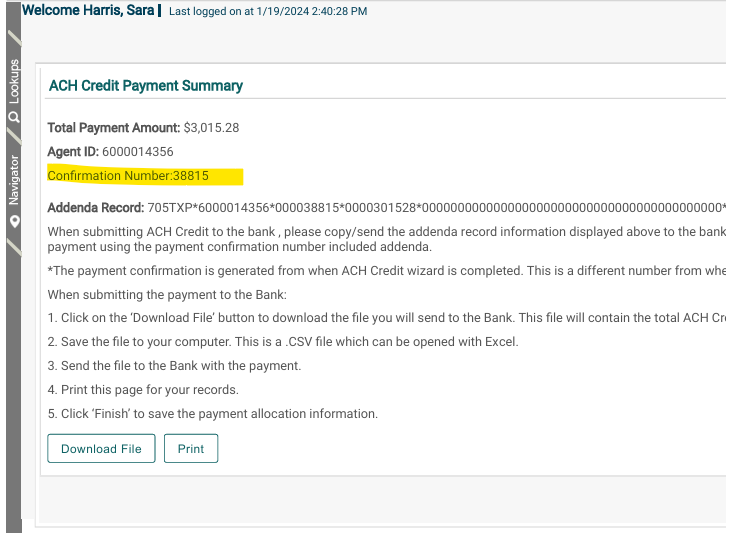
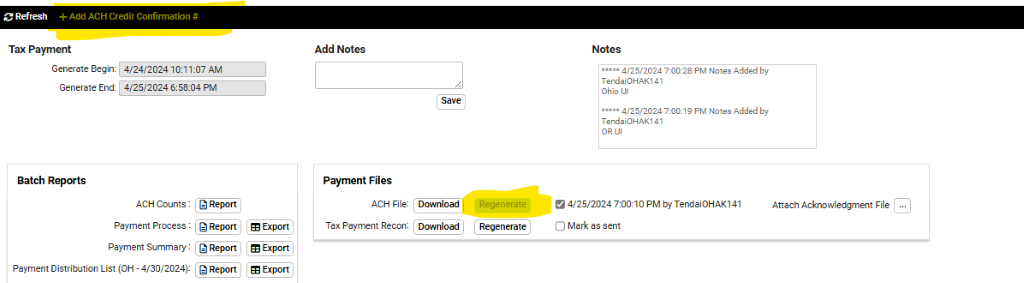
- Enter the confirmation in iSolved under the Tax Payment Processing| Payment History| under ACH Credit Confirmation#| regenerate the payment| Process ACH payment
Maryland Withholding
- Upload file to MD b-File under Withholding Returns| Select File Withholding Reconciliation
- MD_MW506 generates with payment
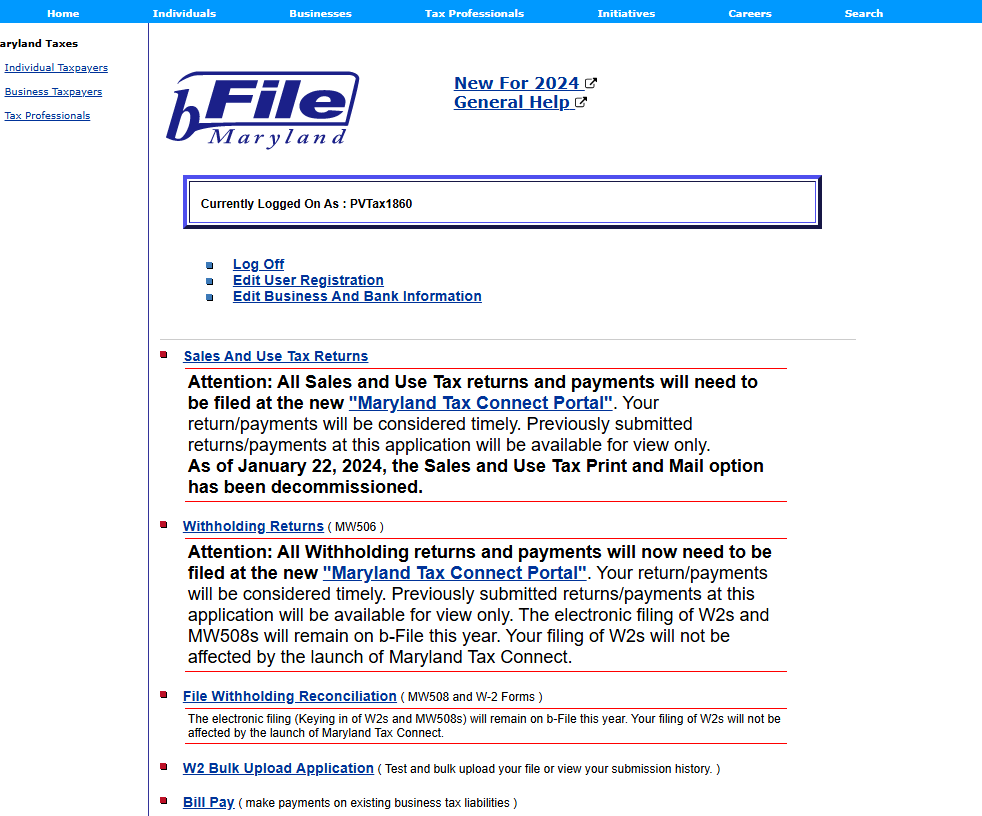
B-File:
Files – W2
Annual MW508
WH –506 generates with payment in iSolved