Maine Unemployment
- Once you've logged in, select tax & wage report
- Select Upload Tax and Wage Report File
- Enter Sara's Information, and Next
- Select Qtr/Year
- Upload the iSolved tax file, and hit next
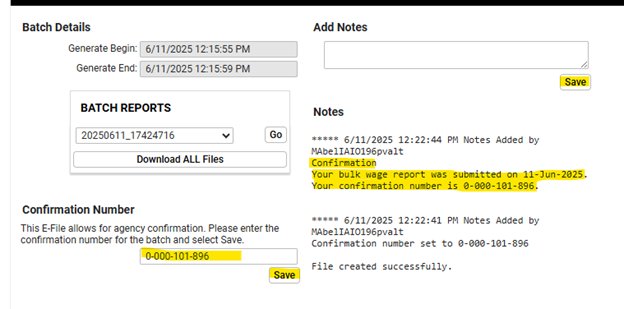
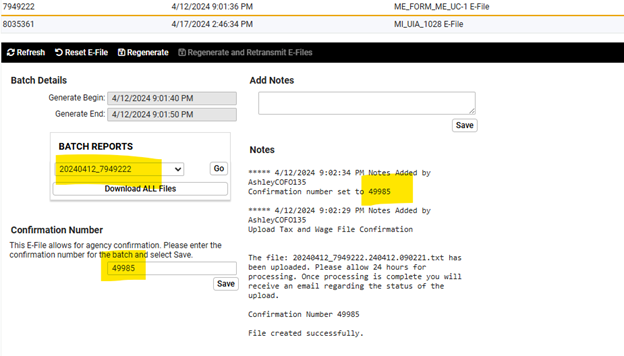
- Save the confirmation # to the master spreadsheet, and iSolved.
- The PV Tax will receive an email of the upload confirmation, and within 24-48 hours of the file submission status. If accepted, everything is good. If it's partially completed, please review the errors
Maine Withholding
- Go to the More... Tab
- Under Payments and Returns, Click on Upload Bulk Withholding File
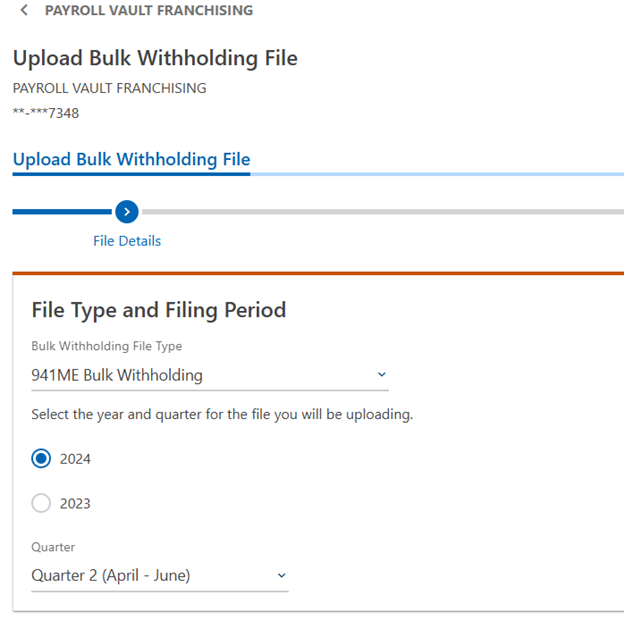
- Attach Bulk Withholding File
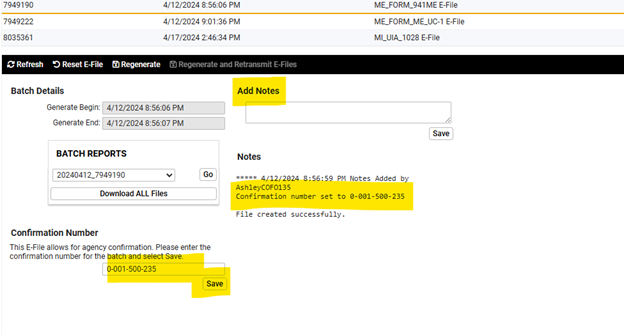
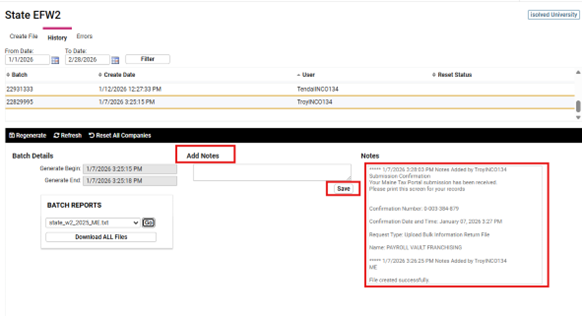
- Save Confirmation in iSolved & Master Spreadsheet
Maine W2s
- Go to the More... Tab
- Under Payments and Returns, Click on Upload Bulk Withholding File
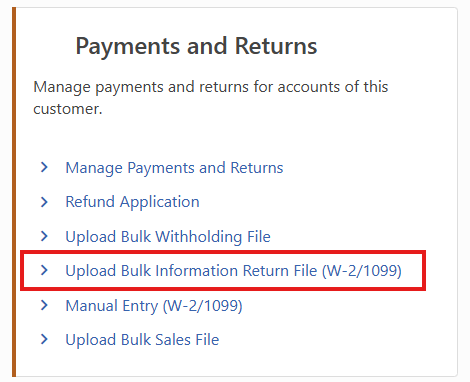
- Then, Next
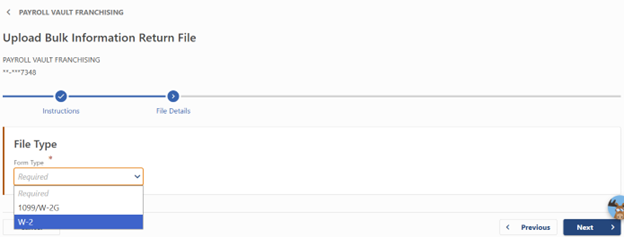
- Select the File Type of W-2, then Next
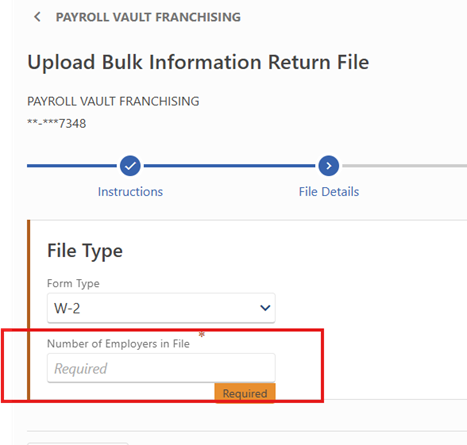
- Enter number of employers in the file
- Choose the state w2 file.
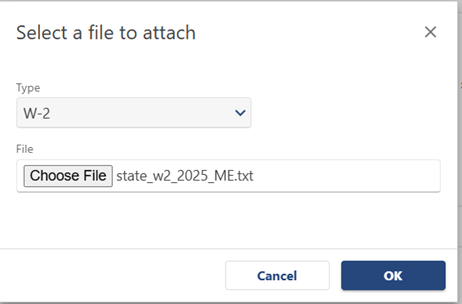
- Then, Next.
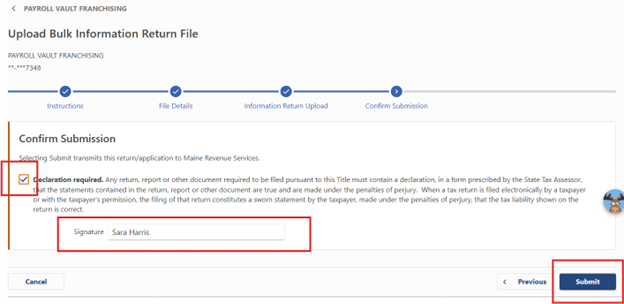
- Confirm Submission by entering Sara Harris’ name and clicking on the Declaration Required checkbox, then Submit
- Save Confirmation in iSolved & Master Spreadsheet
Maine PFML
Login:
https://pfml.maine.gov/contributions/_/
Access: We do not need access in order to bulk file returns. To gain access, on the summary page, select Request Third-Party Access, enter the Federal EIN and submit. The Client must approve the request
To allow a payroll processor third-party access to your account, they must be registered in the PFML Portal as a TPA (Third Party Administrator). Then they will have to send you a request from their Portal account to access your account. To send the request they will need your Federal Employer ID Number.
You will then see an alert in your Action Center. You will click the "Respond to a Third Party Access Request" notification, then select "Yes," then select the "Grant Account Access" checkbox. In the Access Level drop-down menu, set the appropriate access level for your TPA. After you click "Save" they will have access to your account.
Filing Quarterly PFML:
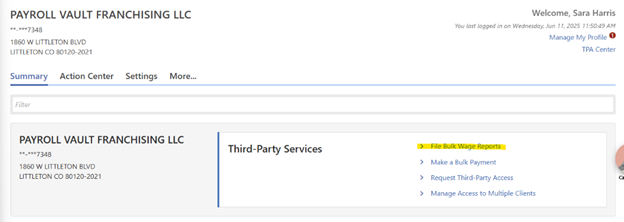
Go to Summary/File Bulk Wage Reports.
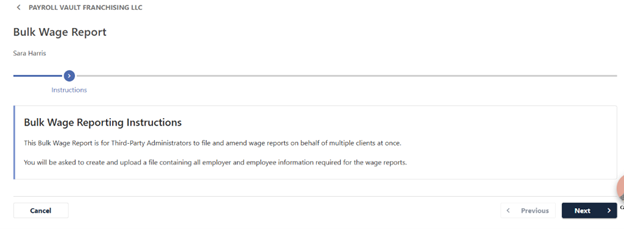
Select Next
On the Upload File Screen, click on Add Attachment.
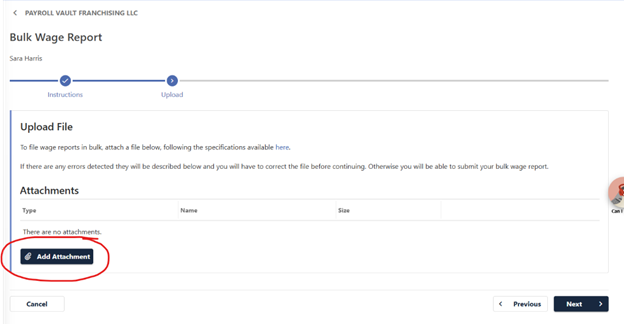
Choose a file, then OK.
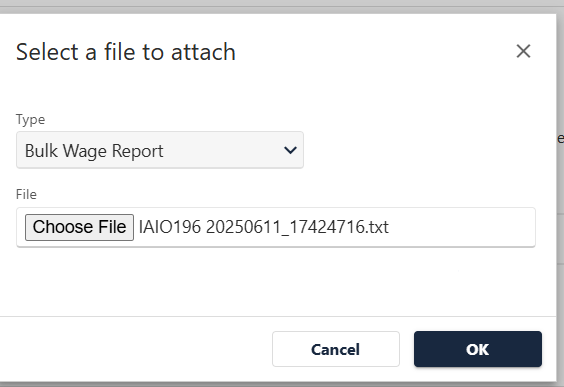
If you see warnings, you can still file the return.

Then, submit.
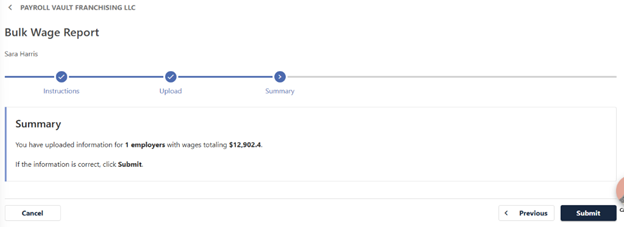
Save Confirmation in iSolved & Master Spreadsheet
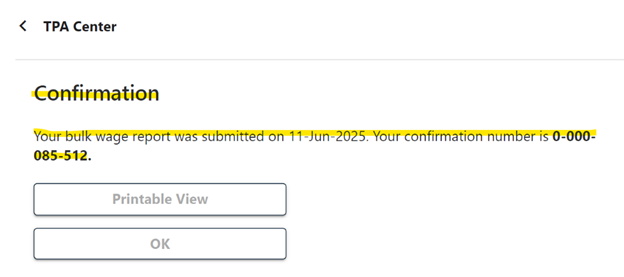
Go to E-File History and record the Confirmation text and the number to the history.