This article defines the standard process our internal team follows for evaluating new tickets, communicating with franchisees or team members, completing required tasks, documenting actions, and closing tickets properly to ensure consistent and timely support.
Tax tickets should generally be worked in the order they are received; however, some situations require adjusting priority. Tickets involving urgent notices, approaching response deadlines, or time-sensitive agency actions must be worked first. Always confirm that each ticket has been assigned the correct priority level.
Be mindful of notice deadlines, as agencies may assess additional penalties and interest—or take further action—if a response is not submitted on time. Additionally, tickets related to quarterly filings should take precedence during quarterly filing periods to support timely and accurate submissions.
- Franchise users submit tickets through the support link: https://47956820.hs-sites.com/-support-pv
- The corporate team (OPS and Tax) have the following service agreement with the franchisees on response time from the ticket priority
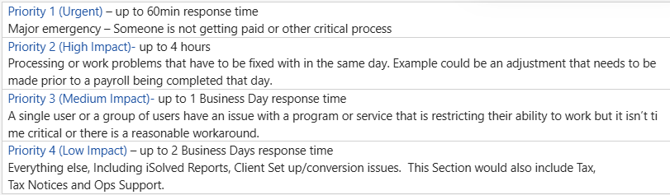
- Note: The priority Urgent or High should be for anyone that is not being paid
- A tax notice is not an urgent ticket, and the priority should be moved to Low, then notify the franchise letting them know their ticket priority was changed
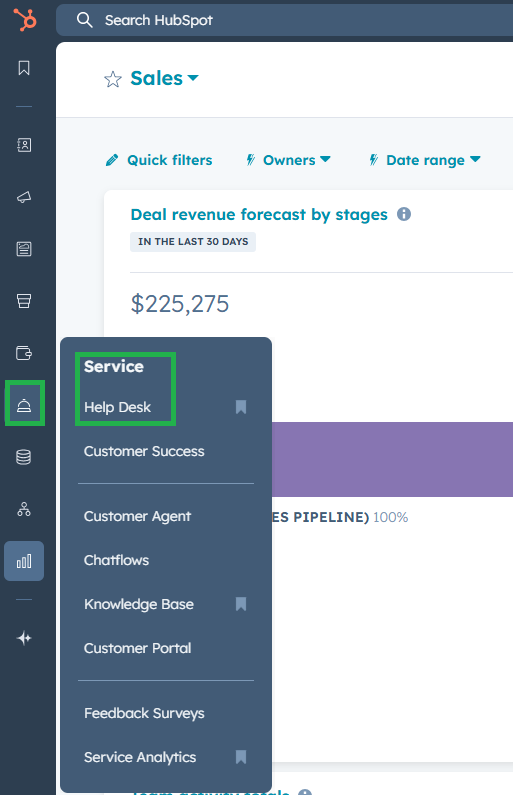
- Once logged into HubSpot, select Service > Help Desk
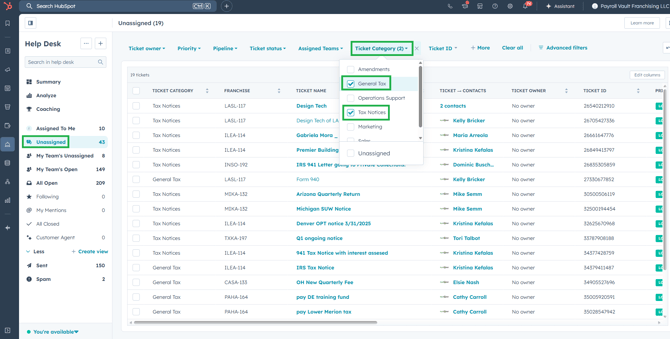
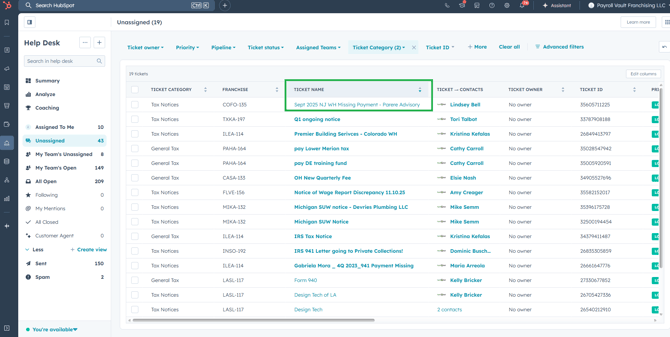
- Select the Unassigned tickets
- Filter the Ticket Category for General Tax and Tax Notices
- Guidelines for picking up tickets
- If the ticket is regarding a Federal tax payment, withholding payment that is not quarterly or a local payment that is not quarterly, you'll pick up the ticket for the Security Group you pay daily taxes for
- If the ticket is regarding a quarterly filing or payment, you'll pick up the ticket for the state you file for
- To assign the ticket to yourself, select the ticket name
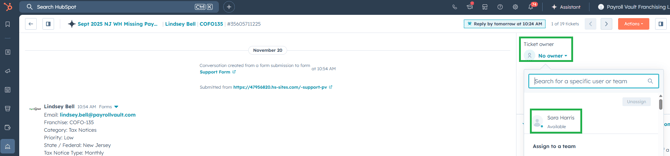
- Once in the ticket, select the ticket owner dropdown and select your name
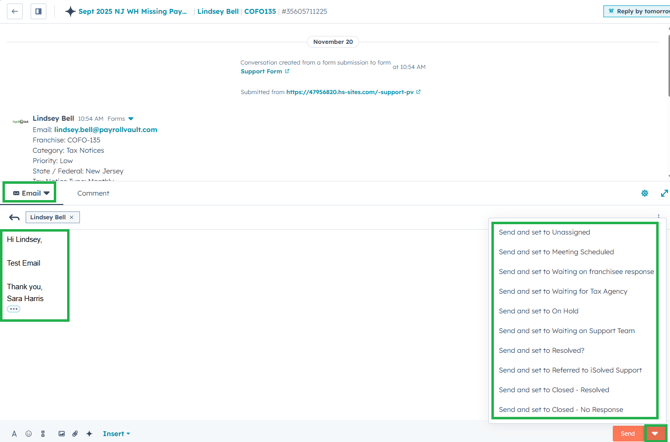
- Email in ticket letting franchisee know you have received the ticket. You will research and get back to them shortly.
- Research the ticket. Helpful guide provided to franchisees: https://47956820.hs-sites.com/knowledge-base/tax-notices
- Email within the ticket of your research findings. Give as much detail as you can to the franchisee so they have an understanding of what happened so they can relay the information to their client.
- Select the Send arrow and chose "Send and set to ____"
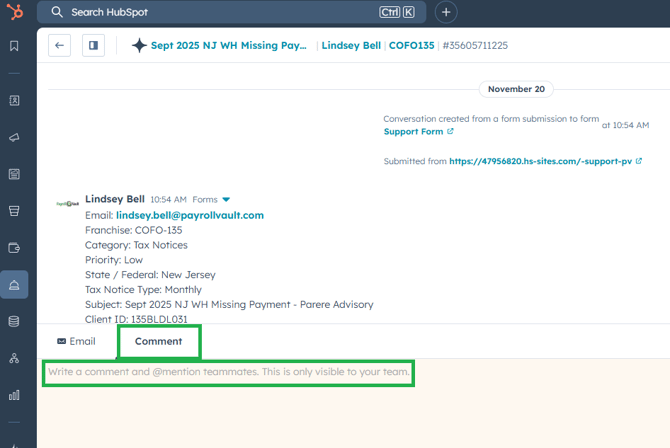
- Add any notes to the comment tab. Availability to tag "@" any team members needed from both OPS and Tax. Notes are not visible to franchise, only OPS and Tax.
- Correspond timely until ticket can be set to Closed - Resolved
- Under the Service > Help Desk select "Assigned To Me" to view your tickets
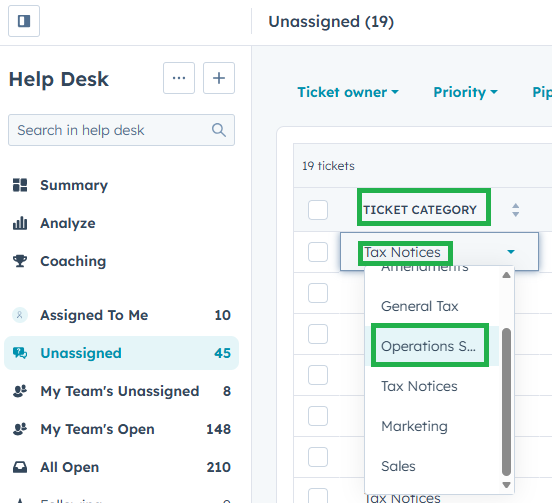
- If the ticket category needs to be changed to OPS, select the ticket category and choose OPS from the dropdown