
At the end of the day (after 3PM MST) Georgia Bank will send an email with a spreadsheet of the bank files they have received for the day and are going to process. Prior to processing the files, we have to verify the file amounts we sent match the file amounts they have.
- Georgia Bank will email an Excel spreadsheet of the bank files for that day in an email with the subject line: Approve ACH files – Today's Date
- Open the spreadsheet from the email
- Review
- Create an AutoSum under the Total Debits and Total Credits Column
- Compare totals to the totals of the Tax Payment Audit Export for all Service Groups
- Login to Prime
- Navigate to Reports > Service Bureau Reports
- Select the Tax Payment Audit Export
- Check mark Select All Environments
- Continue
- Date range – From date and To date should be today's date
- Format – Excel
- Select Generate Report Batch
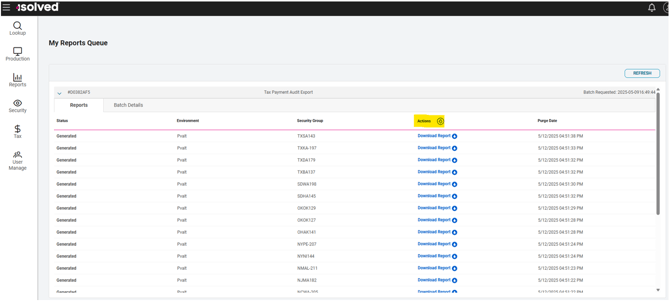
- Select Go To My Reports Queue
- Open the Batch by selecting the arrow
- Under Actions make sure each report has generated by displaying "Download Report"
- There is multiple pages of reports
- Note: The reports will take some time to generate. Check each page to review they are showing as generated. If there is an error on one, PRIME will not allow you to download any others and you'll need to start over.
- Once all reports have generated select the Download button in the header to download all reports at once
- On your computer under downloads you will see a zip folder file labeled "Download all Reports"

-
On your computer under downloads right click > Select New > Select Folder
- Name the folder today's date

-
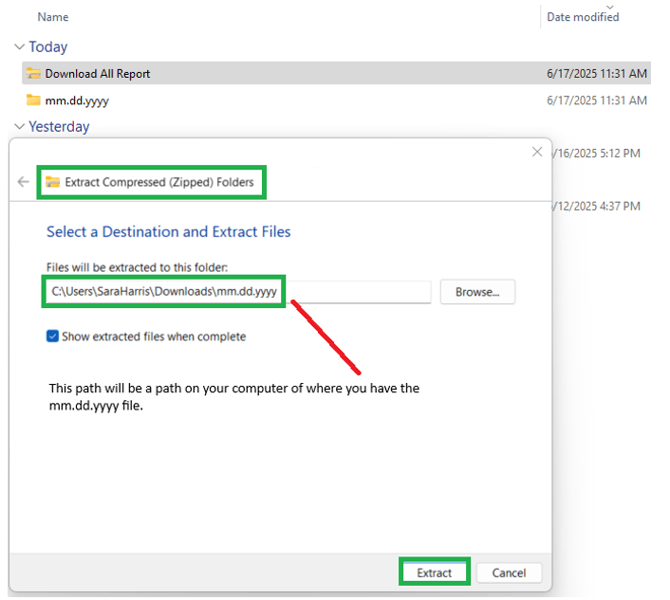
On your computer under downloads right click on the zip folder file labeled "Download all Report"
- Select Extract All
- In the pop up window "Extract Compressed (Zipped) Folders" select Browse
- Navigate to Downloads > File named today's date from step 11
- Select Extract
-
Combine all Excel spreadsheets together into one
- Open a new Excel
- Select Blank Workbook
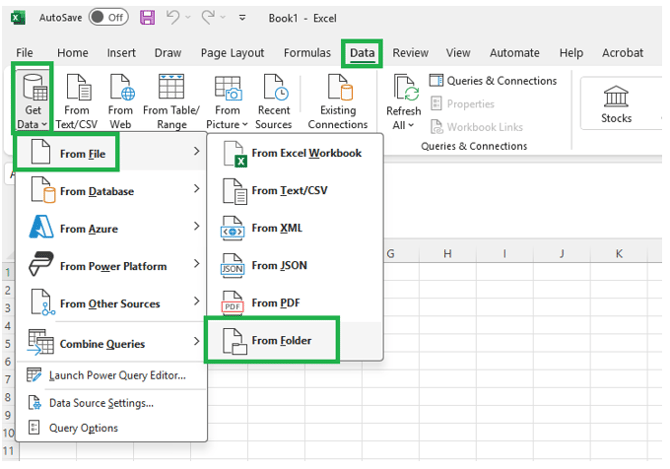
- Select the Data Ribbon > Get Data > From File > From Folder
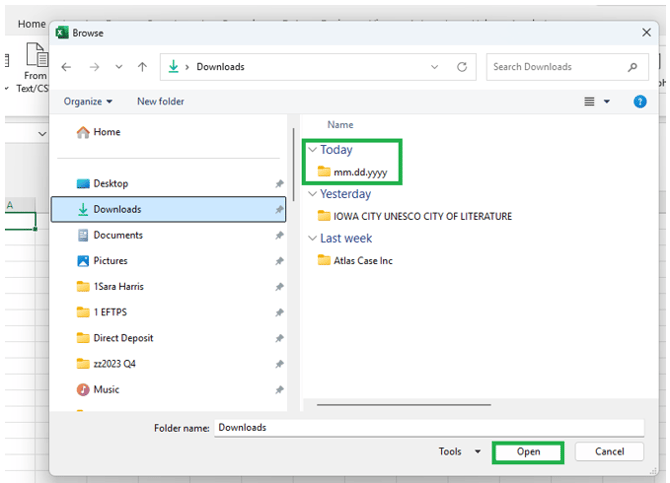
- In the pop up window Select your mm.dd.yyyy folder
- Select OPEN
- In the pop up window select Combine > Combine & Load
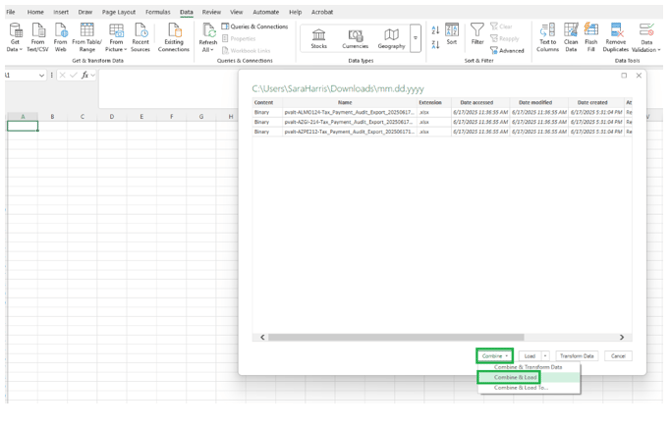
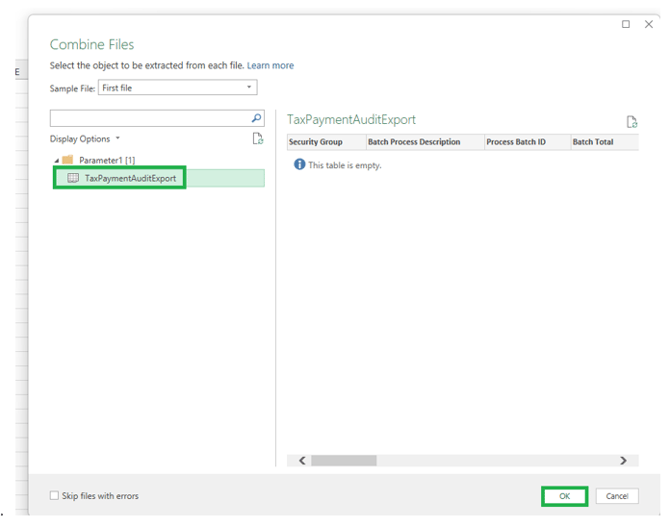
- In the pop up "Combine Files" window select TaxPaymentAuditExport
- Select OK
- Auto Sum the column named ACH Payment Total (column F)
- Auto Sum the column named ACH File Total (column G)
- Compare the totals to the Georgia Banking Excel Spreadsheet that is mailed to pvtax@payrollvault.com (Step 1)
- Once you confirm the totals match, reply to the email letting Georgia bank know the totals match and the files are okay to process.
HELPFUL TIPS:
- ACH Payment Total (column F) may show reopened batches. This will throw off the total as this column will show the original file, the reopened file, and the new file (if applicable).
- Check for files that are showing as "Not Sent". If there is a file as "Not Sent", go back to the tax processor and let them know the file was not sent. They will need to upload the file to Georgia Bank through FileZilla if it needs to go today.
- Check notes of the PRIME spreadsheet
- Check notes for any Denver OPT payments. The agency pulls these payments as Debit from our account. However, it has to be set as ACH Credit in iSolved to generate the E-Files.
- OH OBG may show on the PRIME spreadsheet and not be sent. The OBG payment files in iSolved have to be generated in iSolved once OBG sends the acknowledgment back.