
Helpful University Article: https://learning.myisolved.com/library/documents/6122
This screen aims to register and terminate clients for EFTPS (Electronic Federal Tax Payment System). The agency provides a response file with the newly assigned EFT (Electronic Funds Transfer) PIN, which can be imported into the Client Tax Maintenance screen using this option.
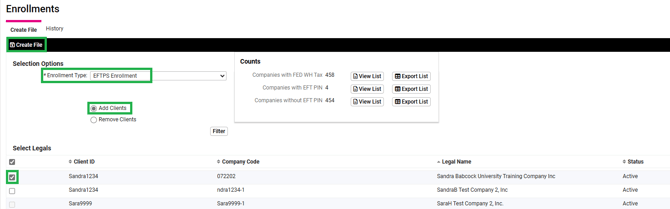
- Navigate to Tax Filing Management > Tax Utilities > Enrollments
- Note: If the client is greyed out, the franchise will need to correct the client's payment method in the clients Tax Maintenance screen to ACH Credit for the tax team to be able to register the client
- Filter the Enrollment Type: EFTPS Enrollment
- Filter: Add Clients
- Select Filter
- Select the clients you would like to register
- Select Create File on the black bar
- An EFTPS Pin Update box will appear. DO NOT enter an assigned PIN, select save
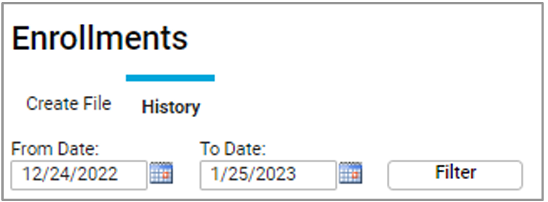
- Select the tab labeled History
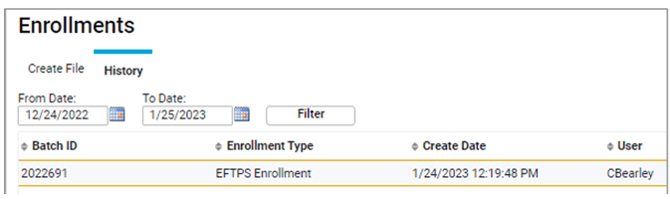
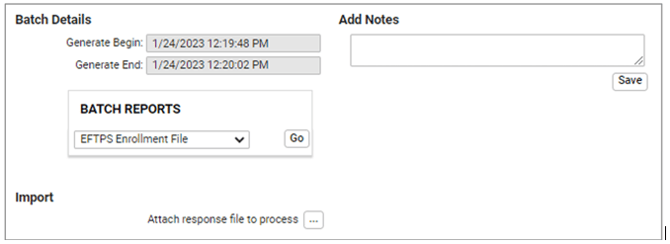
- Choose your file and download the EFTPS Enrollment File by selecting Go under the Batch Reports
- Take the downloaded file and import into the EFTPS batch provider
- Login is specific to you. You will sync with PVF master password and PIN number
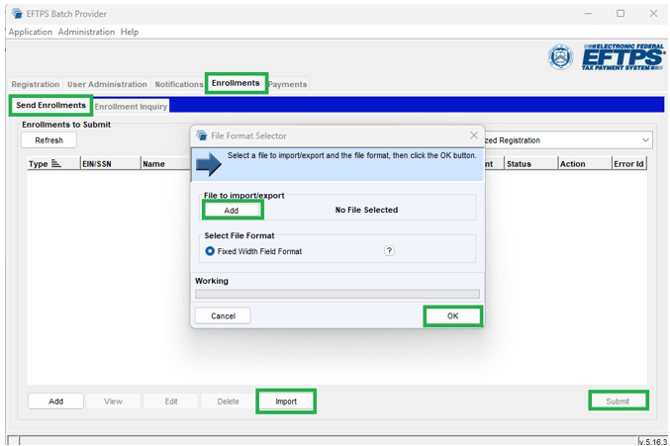
- Select Enrollments Tab
- Default to Send Enrollments sub tab
- Select Import
- Select Add
- add file from destination on your computer
- Select OK
- Highlight the files you have imported
- Select Submit
- Enter the Master Password and PIN
- Check back in a couple hours to ensure the enrollments have been accepted
- Login is specific to you. You will sync with PVF master password and PIN number
- Select Enrollments Tab
- Select the Enrollment Inquiry sub tab
- Select Sync
- Enter the Master PIN and Master Password
- Enter the to and from date
- Select Submit
- Search on the top half for client registrations and status
*IMPORTANT* - If a client is showing as terminated, reach out to the franchise immediately via email and notify them of the error. We cannot make client F941 payments without the EFTPS enrollment accepted.
EFTPS – Import PINs into isolved
You’ll want to complete this step after you have imported your enrollment file from isolved to the EFTPS Batch Provider.- Login to the EFTPS Batch Provider
- Select the Enrollments tab
- Select the Enrollment Inquiry tab
- Filter the processed date for the date you submitted the enrollment file
- Select Search
- Under the column Created Date select, highlight/select all the clients for the date you submitted the enrollment. You may need to choose one client, hold the ctrl on your keyboard and select your additional clients.
- Select Export
- Filter the File Format Selector Box
- File to import/export > Select add
- DO NOT choose a file but note where the file is being saved on your computer
- File name: Enter a file name, at the end include .csv (example: EFTPS Response.csv)
- Select Open
- Select File Format > Comma Delimited Format
- Select OK
- Select OK
- File to import/export > Select add
- Login to isolved and select the security group you are importing
- Navigate to Tax Filing Management > Tax Utilities > Enrollments
- Select the History tab
- Filter to the date you created the enrollment file
- On the bottom half of the screen under import > attach responses file to process select the box with the three dots
- Navigate to the folder you originally saved your file under from step 8.a.i. (Note: In the bottom right-hand corner you may need to choose the dropdown and select All Files
- Choose your file
- Select Open
- Once the file is imported, under batch reports, choose the report named EFTPS Enrollment Response Report and select Go
- This report will list each of the clients and their PIN’s that have been imported. If any did not import the report will show you, they were rejected