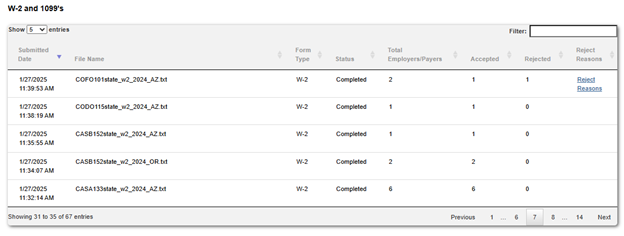
Arizona Unemployment
-
Login to Arizona Unemployment
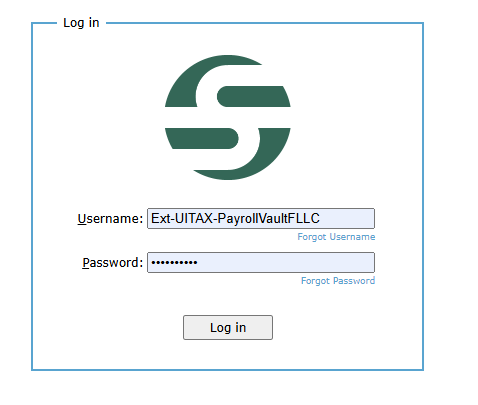
- Your Next Screen should have the title: Web Transfer Client
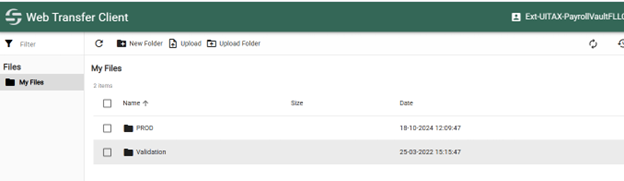
- Click on the PROD File Folder:
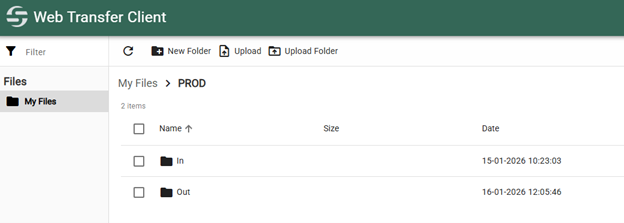
- Now you will need to click on the In Folder:
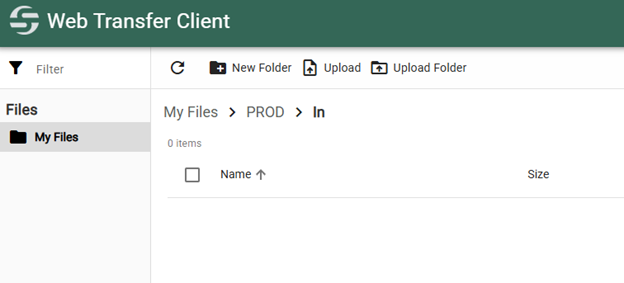
- When this screen pops up, you will need click on the Upload Icon:
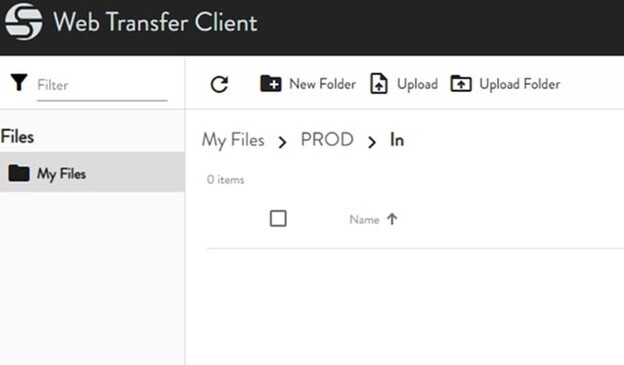
- You will need to retrieve the AZUI XML E-File that you saved in your State Folder and upload it to the site. Do not change the file name. It has to start with 9496940. AZ will turn off our port if the files don’t start with that number.

- *The AZUI XML return will take up to a day to process. You will need to go back to the website the following day to the AZ UI website, “Web Transfer Client”.
- *When you log in this time you will click on the “Out Folder”
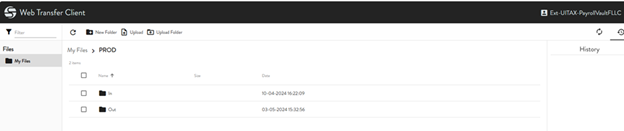
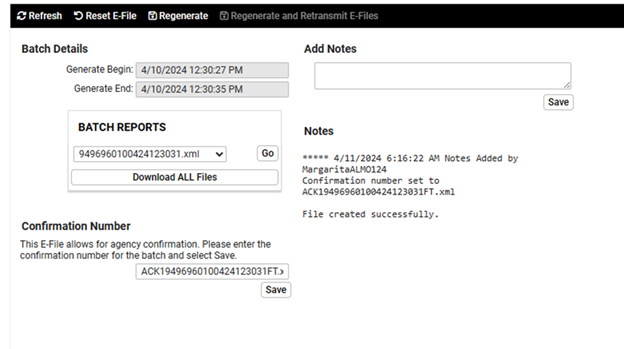
- Here you will see all of your Acknowledgement Files. You will need to match the AZUI File Naming Conventions to your AZUI Returns so that when you go into iSolved you may enter the Acknowledgement Confirmation.
- ACK1 files are just that the return was received.
- ACK2 files are the ones you want to download and show if it was successful, or if there were any errors.
- Error Codes can be found here in Apendix D. 3 zero’s means the file was successful. https://des.az.gov/sites/default/files/media/azure_user_requirements_2016.pdf?time=1768581904109
Arizona Withholding
-
Login to the Arizona Withholding
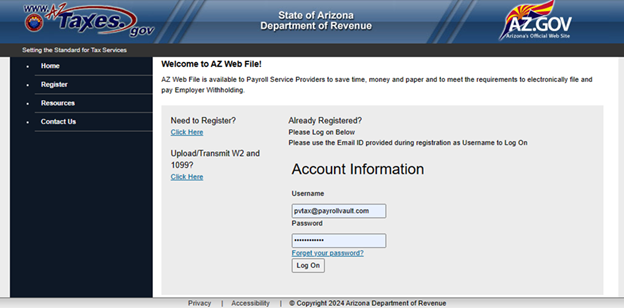
- You will click on Log On button which will take you to next screen
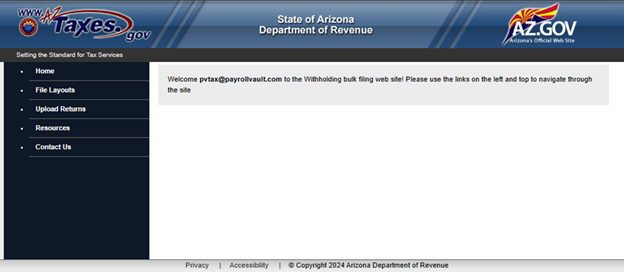
- Click on Upload Returns on the left:
- Click on Upload New File:
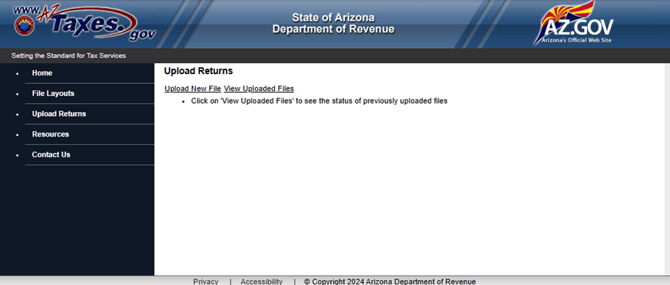
- Once you click on the Upload New File, you will need to click on the arrow which will open drop down box.
- Click on: FormA1-QRT 01/01/2014-12/31/9999.
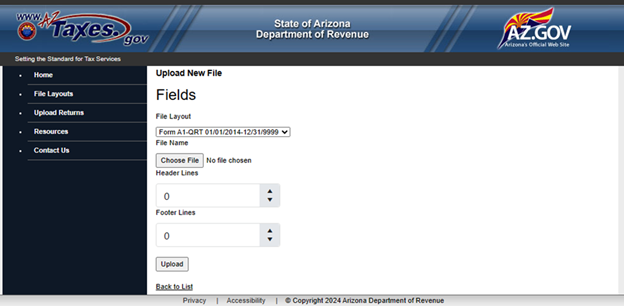
- Click then on: Choose File
- *You will then need to retrieve your E-File that you created in iSolved for your Service Group with clients in AZ.
- *The E-File will need to be a CSV File Format.
- *The return may take several minutes to process on the website.
- *Go back to Home Page and this time click on View Uploaded Files
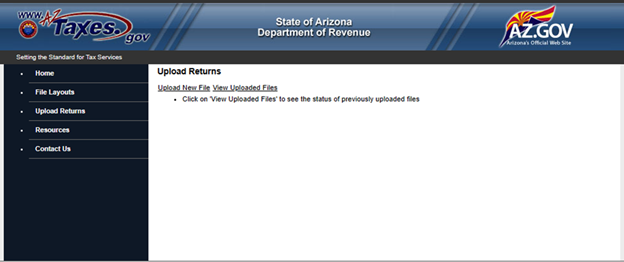
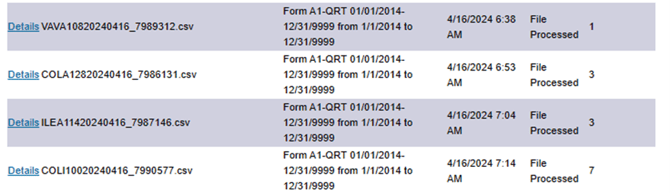
- You will see all the Files that have been uploaded. Search for the Service Group CSV File for the quarter and or year that you are filing for.
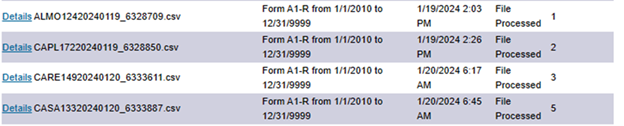
- Preview of what your AZ WH Quarterly File should look like:
- Preview of what your AZ WH Annual File should look like:
- Click on the Details Tab on the Left of the File that Processed for your Service Group

- Scroll all the way down, you will then see the Status for Uploaded File ID:

- Enter the Submission ID in the iSolved Notes for that Service Group
Arizona W2’s
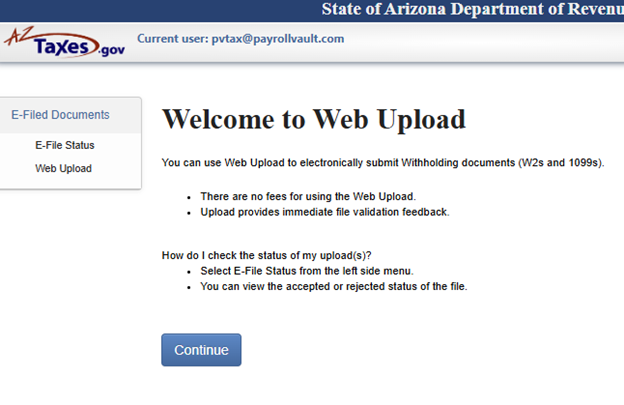
- Log onto the Web file site.
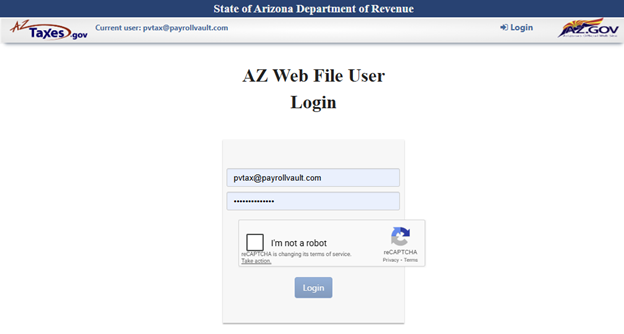
- Select Continue
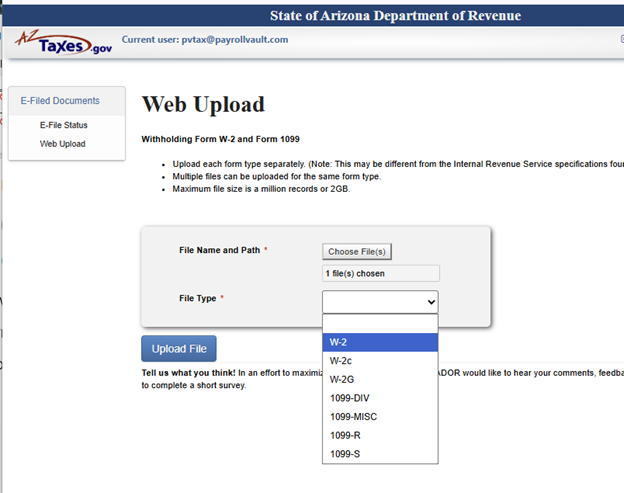
- Choose the file and file type, then Upload.
- Come back the next day to check the efile status.
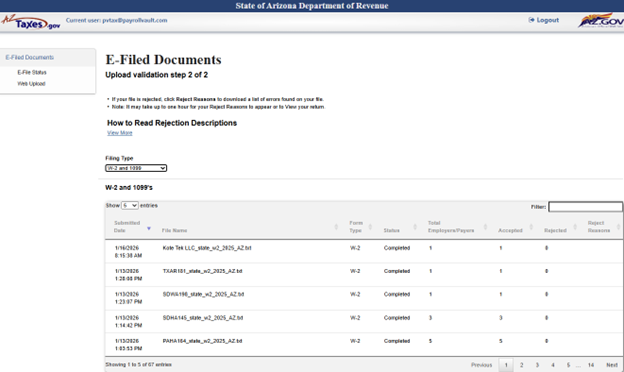
- If there is a rejection, click on the reject reasons