
Alaska Unemployment
Alaska UI is submitted per client. There is no bulk file option at this time.
In iSolved, there are two files that create to be submitted for each client. You will need to create them and download individually to upload to the state individually.
- Header Detail (Return)
- Wage Detail (Wage)

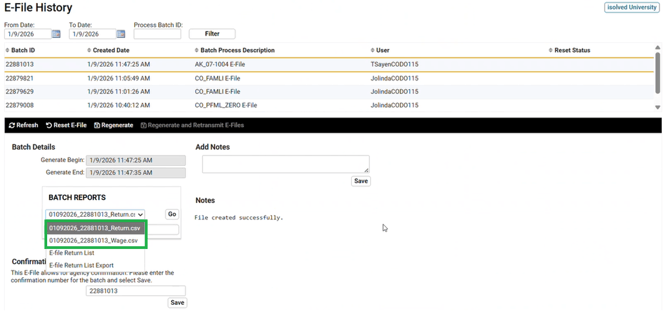
- Login to Alaska Unemployment
- Select Payroll Vault Franchising LLC
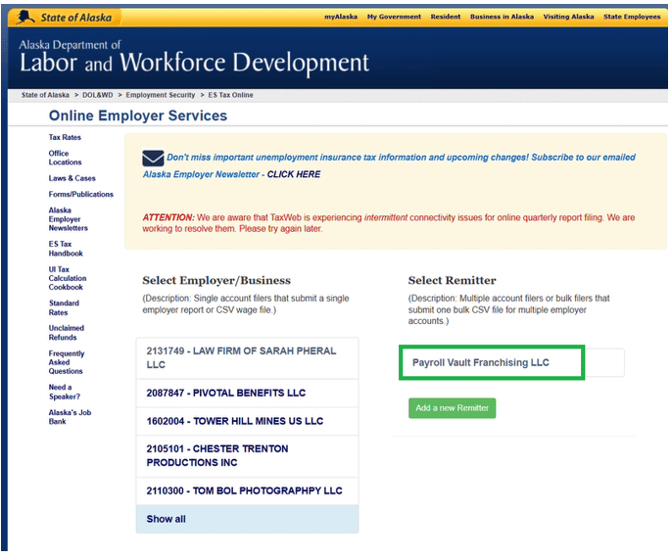
- Select Start New Submission
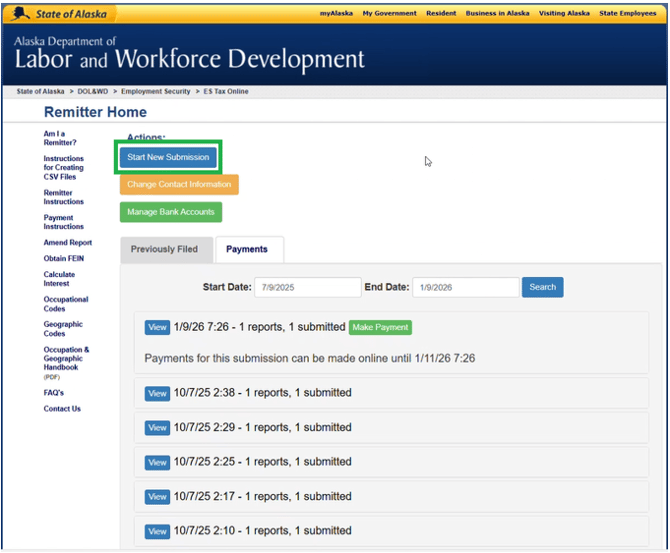
-
You will start to upload your files. There is a three-step step upload
- First Upload is the Header (Return) upload, choose your file and select upload
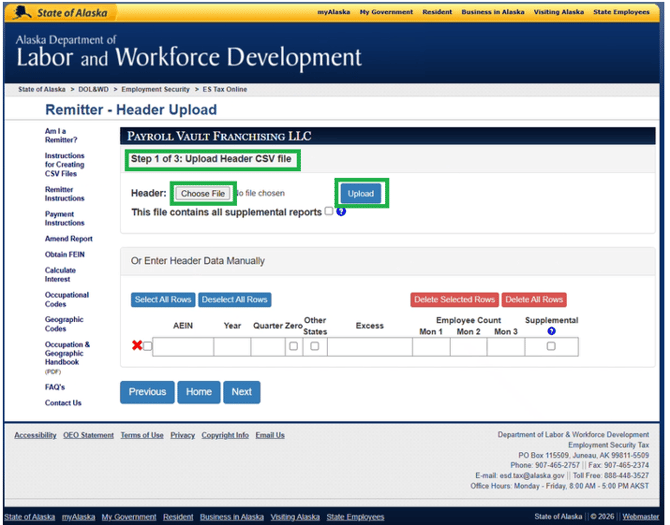
- Second Upload is the Wage Detail Upload, choose your file select upload
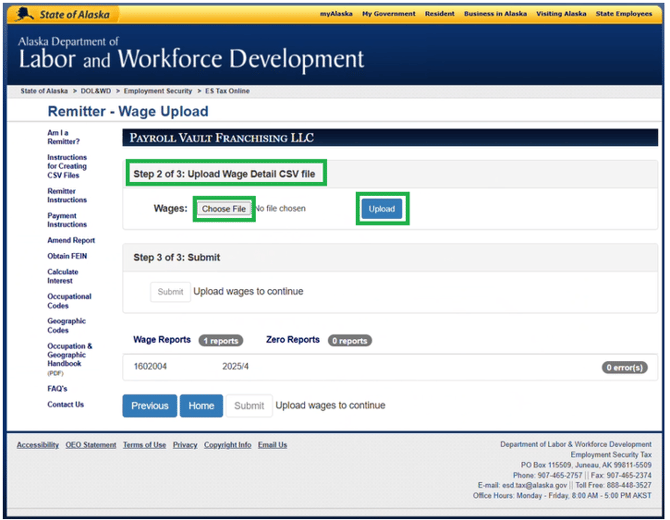
-
There is no additional files to upload. DO NOT choose another file. Select Submit to submit the clients AK UI reports
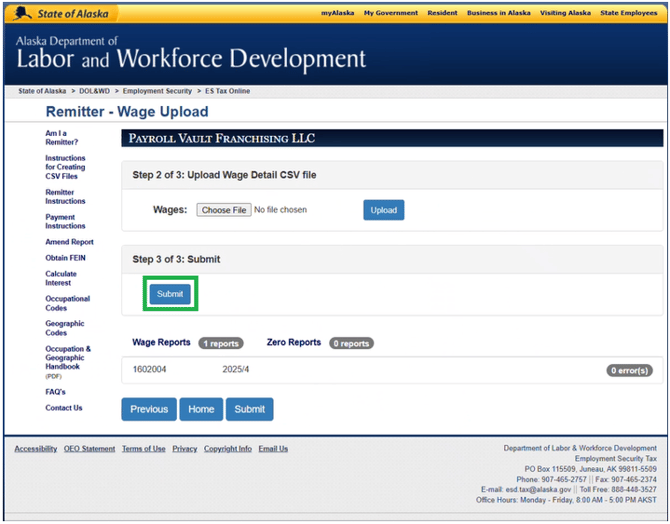
-
Choose Print Summary and print a copy of the filing to the PV Tax SharePoint
- Copy the Date/Time Submitted into the notes in iSolved
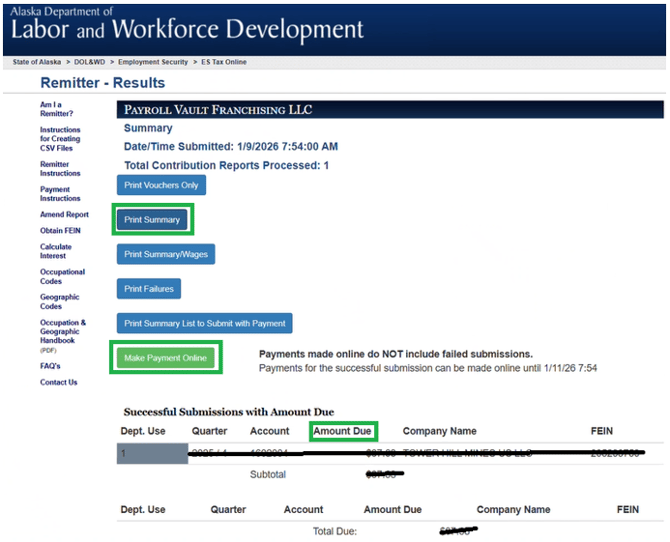
-
Select Make Payment Online to submit the payment
- Verify the amounts matches the amount of funds we have collected in iSolved
- Pay from the Georgia Bank Account
- Push payment in iSolved as a Debit Manual Pay with the pay date as two business days from date you are paying
- Save payment confirmation to the PV Tax SharePoint
- Payment will need to be recorded in teams under the Bank Rec Chat > P&I totals spreadsheet > Debits tab
- Any debits coming from the tax account must be approved by the bank rec team.