
This article covers how to add articles to the internal Knowledge Base
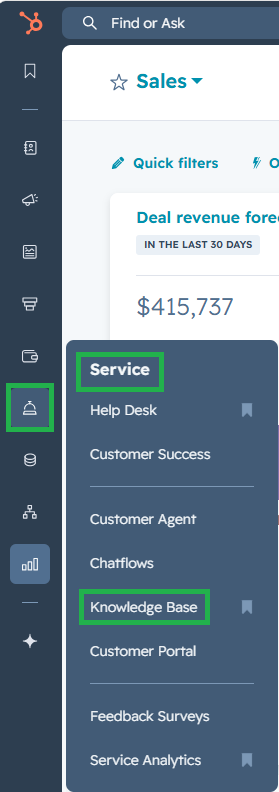
- Login to HubSpot and navigate to Service (bell icon) > Knowledge Base
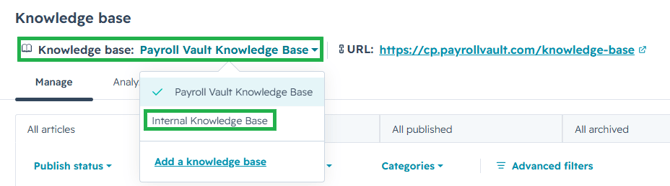
- In the Knowledge Base drop down select "Internal Knowledge Base"
- The Payroll Vault Knowledge Base is used for the Franchise Guides
- The Payroll Vault Knowledge Base is used for the Franchise Guides
- In the top right corner select Create Article

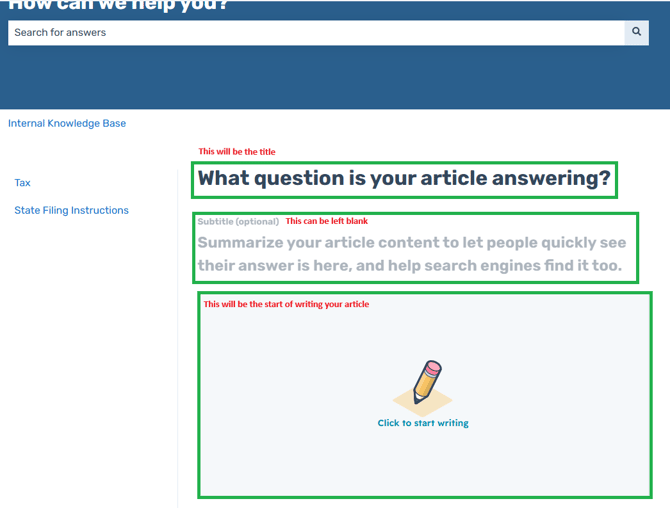
- Start entering your information in the article
- The section that states "What question is your article answering?" will be the title of your article
- The subtitle (optional) can be left blank
- In the "Click to start" you can begin writing your article
- If you need to add any images, DO NOT copy and paste them in the article. This will cause the image to be replaced with other images from the article and is caused by the basic naming of the screen clip.
- When you are saving the images to your computer, you'll want to name them specific to the article
- For Example (from this article):
- Image 1 name: Adding an Article to the Internal Knowledge Base_1
- Image 2 name: Adding an Article to the Internal Knowledge Base_2
- Image 3 name: Adding an Article to the Internal Knowledge Base_3
- If any image in the knowledge base is named the same it will override all images for every article
- Add images by:
- Selecting the Insert Image Icon

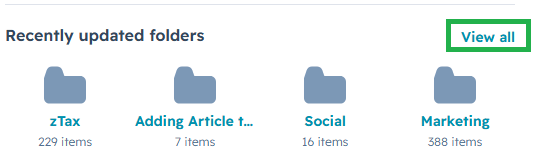
- Under recently updated folders select view all
- Select folder named zTax
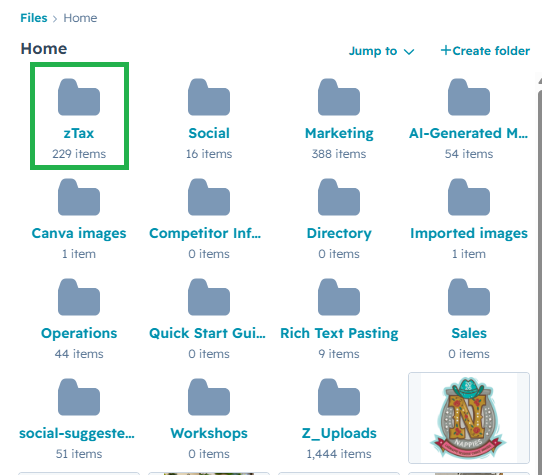
- Select +Create folder

- Name the folder the name of the article
- Select Create
- Select folder
- Select Upload
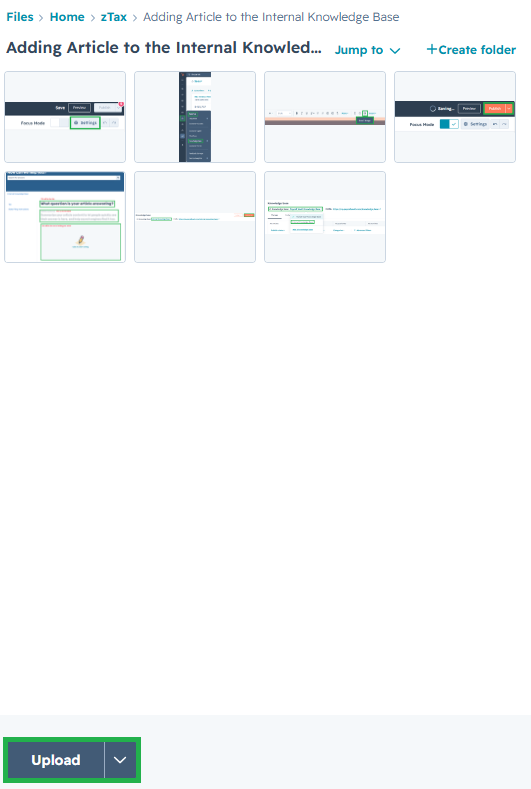
- To add the image to your article you'll select the image icon, navigate to your folder created, and select the image
- Selecting the Insert Image Icon
- Select Settings in the top right corner

- Article title will be the name of your article
- Category - select the category
- Right now there are only two categories (tax and State Filing Instructions)
- Meta description will be the name of your article
- This will auto save, select the X to exit
- Once article is finished, you'll be able to preview or publish your article
- Preview will show you what the article will look like once published. Internal Knowledge base will always show as blue
- When finished, in top right corner select publish

- Note: Article will take a couple of minutes to be visable in the Internal Knowledge Base